

Slack notifications are available during the free trial period and with Agencies & Teams plans.
Step 1: Access Notification Settings
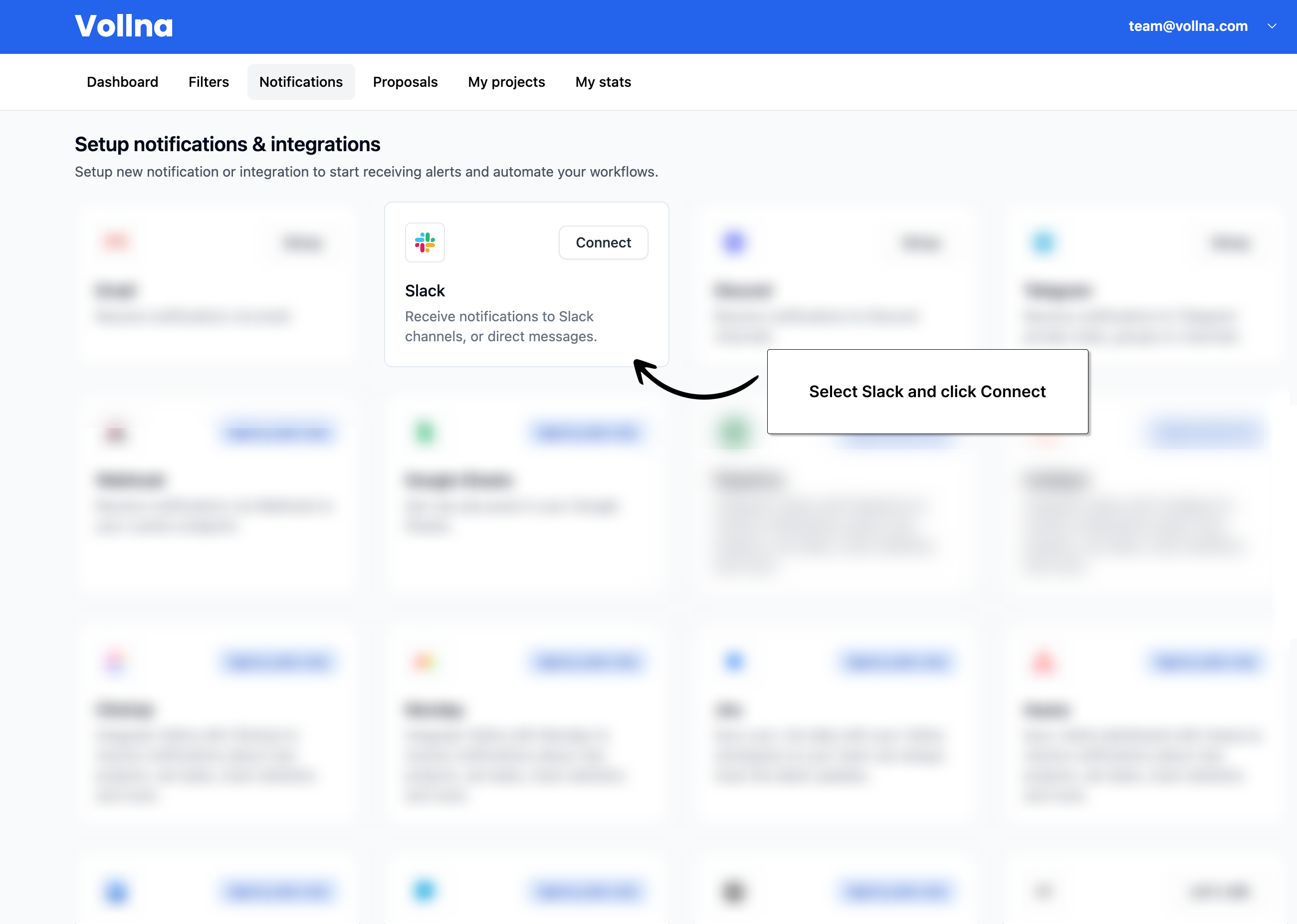
- Go to Dashboard in the main navigation menu > Notifications.
- Locate Slack from the list of available integrations.
Step 2: Connect Slack
- Click on Connect next to Slack.
- Log in to your Slack account if prompted.
- Authorize the Vollna bot to connect to your Slack workspace.

Step 3: Select the Channel
- Return to Vollna after the workspace is connected.
- Select the Slack channel where Vollna should post.
- If Vollna shows a warning that the app is not in the channel, add
@vollna_botto that channel in Slack. - Click Check again in Vollna before relying on delivery.
Connecting your workspace is separate from channel membership. A channel can appear in Vollna even when the Vollna Slack app is not inside that channel yet.
Step 4: Assign Filters
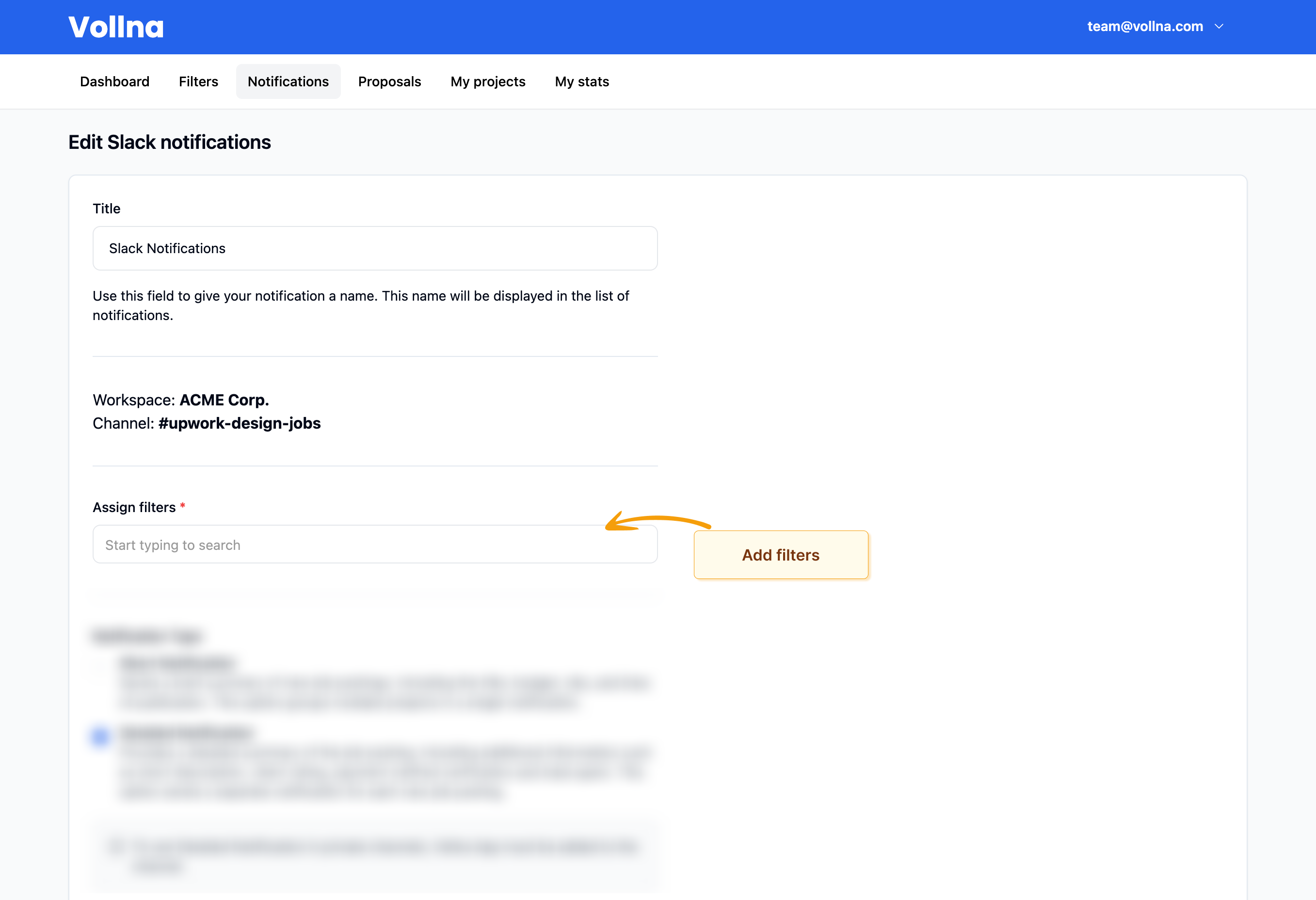
After connecting your workspace, you’ll be redirected to the notifications setup page where you can assign filters to your Slack channels:- Scroll down to the “Assign filters” field
- Add one or multiple filters
- Click Save to apply the filters
Managing Channels
If you wish to change your workspace or channel, you’ll need to start over from Step 1 and set up a new notification configuration.Managing Filters
- To remove a filter, click the ”×” next to the filter name
- To add more filters, click into the field and select from the dropdown
- To create a new filter, see our Custom Filters guide.
Notification Types
You can choose between two types of notifications in Slack:Short Notification
Sends a brief summary of new job postings, including the title, budget, site, and time of publication. This option groups multiple projects in a single notification.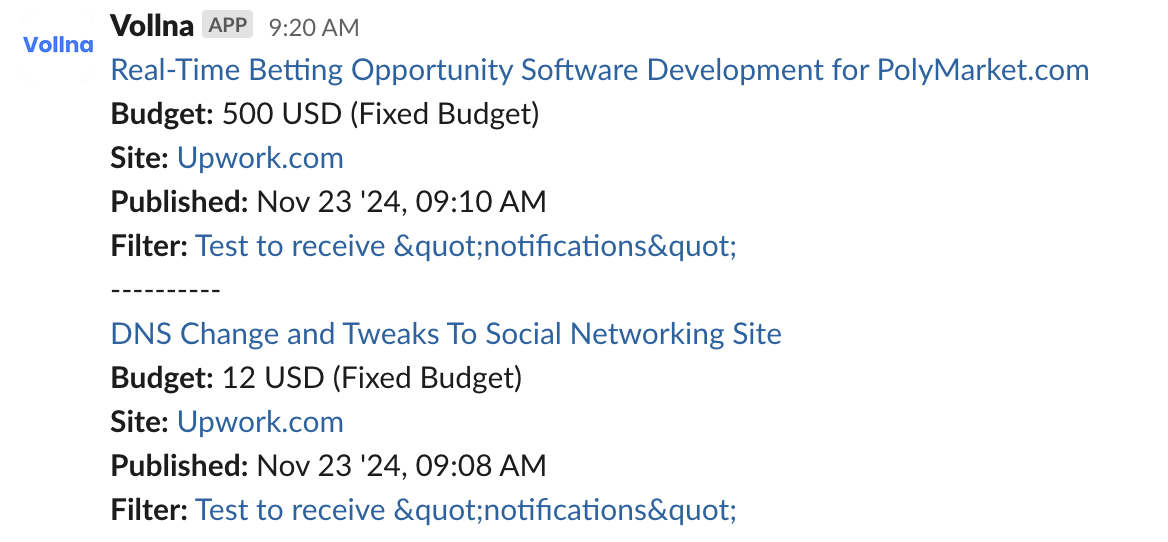
Detailed Notification
Provides a detailed summary of the job posting, including additional information such as short description, client rating, payment method verification and total spent. This option sends a separate notification for each new job posting.
Configure Private Channels
Invite @vollna_bot into the private channel by typing/invite @vollna_bot in the channel.