

Team Webhooks are available on higher plans or as a paid add-on.
Where to configure
- Go to Dashboard → Settings → Developers → Webhooks (or use the Webhooks & API shortcut in the top-right user menu).
- Click Add Endpoint.
Step 1: Set your endpoint URL
- Enter the Webhook URL (a public HTTPS endpoint that accepts
POST).
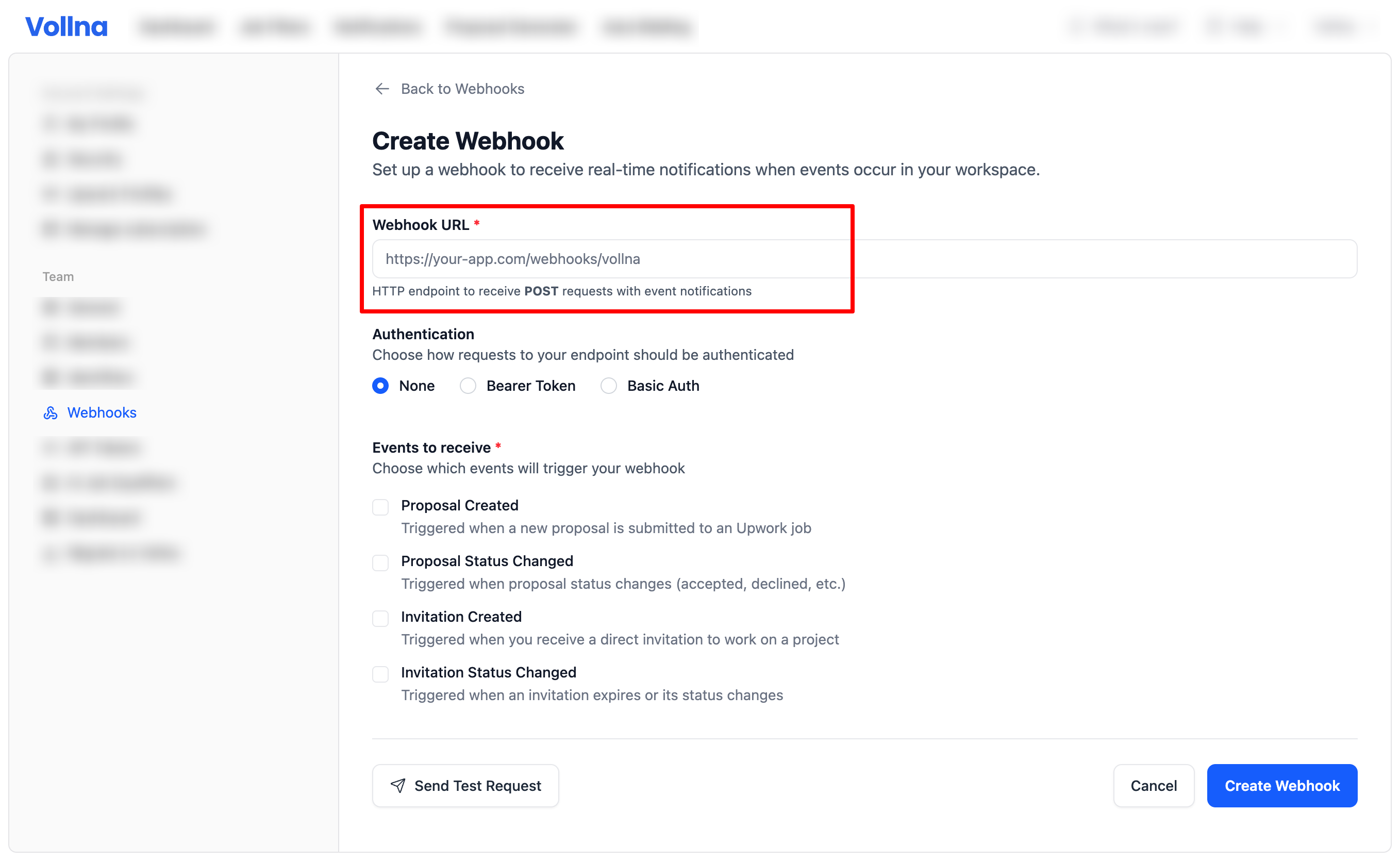
Step 2: Pick events to receive
You can subscribe to one or more events:- Proposal Created (
upwork_proposal.created): triggered when a new proposal is saved in your workspace. - Proposal Status Changed (
upwork_proposal.status_changed): triggered when the proposal’s state changes. This includes view state changes (e.g. whenisViewedtoggles), and also changes toisInterviewed,isHired,isWithdrawn,isArchived. - Invitation Created (
upwork_invitation.created): triggered when a new invitation is saved in your workspace. - Invitation Status Changed (
upwork_invitation.status_changed): triggered when an invitation’sstatusorreasonchanges.
Step 3 (optional): Configure authentication
If your endpoint requires auth, Vollna can send:- Bearer Token:
Authorization: Bearer <token> - Basic Auth:
Authorization: Basic base64(username:password) - Custom Header: any header name and value you configure (e.g.
X-Api-Key: <value>)
Technical Specifications
Understanding the technical details of how Vollna sends webhook requests:- HTTP Method: POST
- Content-Type: application/json
- Timeout: 10 seconds
- User-Agent:
Vollna-Webhooks/1.0 X-Vollna-Event-Idheader: every request carries the sameevt_*identifier as theidfield in the JSON body — useful for logging, deduping, and tracing without parsing the body.
Testing Your Webhook
You can test your webhook configuration by clicking Send Test Request in the webhook form. This sends a sample request to verify your endpoint is reachable and accepts your auth settings.Payload format
Every request is JSON with the same top-level structure:id: unique delivery identifier prefixed withevt_(e.g.evt_a4f1c0d3e8b9...). One id per delivery — log it so you can trace any request back to the matching row under Logs.event: the event name (e.g.upwork_proposal.status_changed)timestamp: ISO-8601 timestampdata: the full proposal or invitation, in the same shape as the Proposals API and Invitations API return it, including the nestedprojectobject
The
id is a public, opaque token. It does not encode any internal database id and is safe to log, store, and forward. The same value is sent in the X-Vollna-Event-Id HTTP header.Example: proposal status/view state changed
The nestedproject object is shortened here — it carries every field of the Project schema.
Debugging delivery
Open Dashboard → Settings → Developers → Webhooks → Logs to inspect every delivery attempt. Each row shows the timestamp (in your timezone, with full UTC + milliseconds on hover), theevt_* Message ID, event type, and status. Click a row to view the request payload, response body, and any error message.
The Activity tab shows hourly delivery counts (Successful / Failed) over the last 6 hours so you can spot incidents at a glance.
Best practices
- Return 2xx quickly (ideally < 5s). Do heavy work asynchronously.
- Log the
idon receipt — pair it with your own internal handler trace so you can correlate problems with the Logs tab in Vollna. - Make handlers idempotent based on the business id inside
data(e.g.applicationUid) — your handler may run more than once for the same underlying record if you re-process or replay traffic. - Validate JSON and tolerate missing/optional fields in
data.
Troubleshooting
Common Issues
Webhook Not Receiving Requests
- Check webhook URL: Ensure it’s publicly accessible and returns a 2xx status code
- Verify authentication: If using auth, check credentials are correct
- Test connectivity: Use the “Send test notification” button in the setup form
- Check firewall: Ensure your server allows incoming requests from Vollna
Missing Fields in Webhook Data
- The
dataobject is a serialized entity and fields may be optional depending on the record. - Always check if a field exists before accessing it.
Testing Your Integration
- Use test notification: Click “Send Test Request” in the webhook setup
- Check logs: Monitor your server logs for incoming requests
- Validate JSON: Ensure your endpoint can parse the JSON payload
- Test authentication: Verify auth headers are received correctly
- Response handling: Ensure you return appropriate HTTP status codes