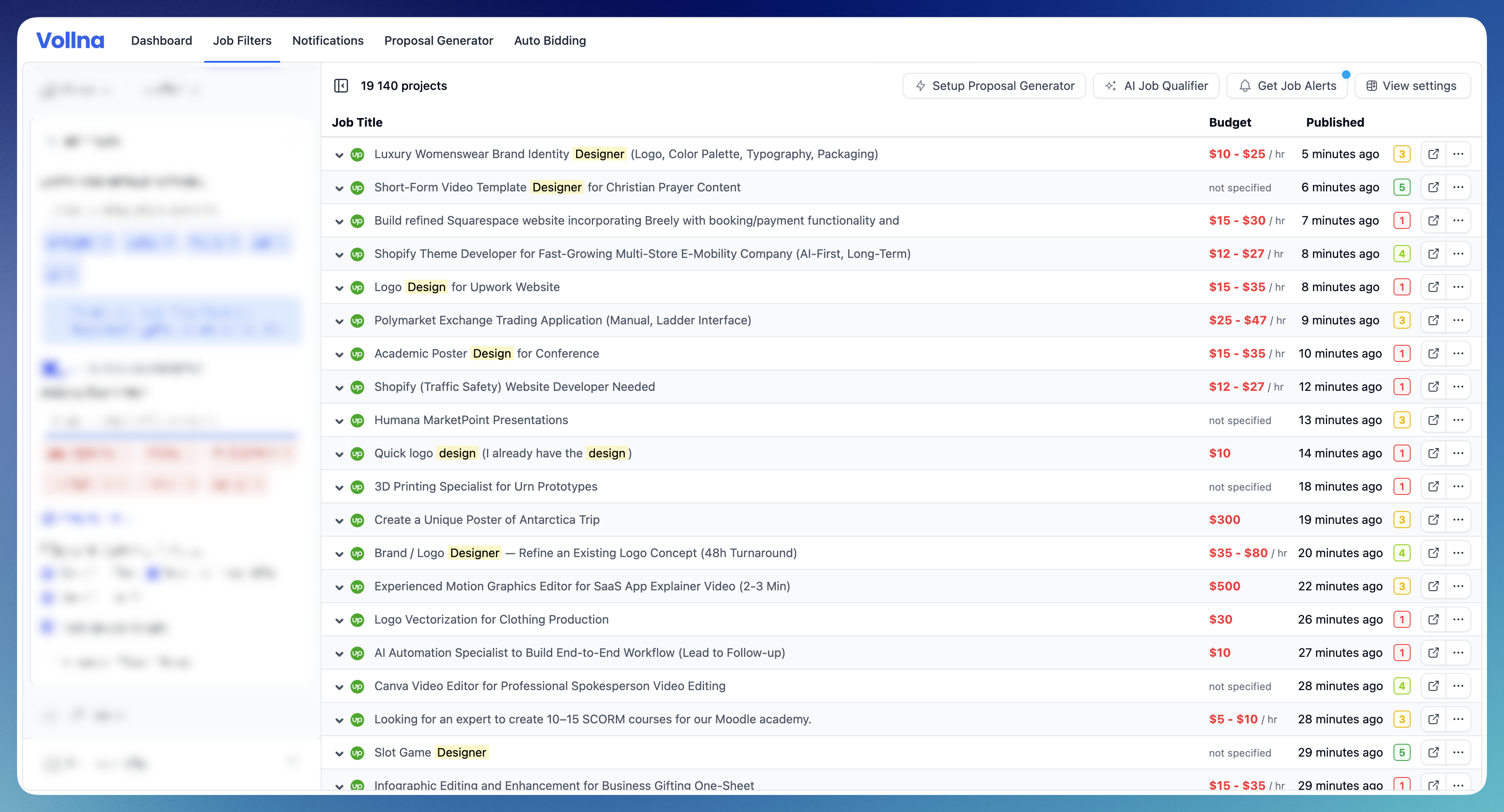
Step 1: Create a New Filter
- Go to Dashboard in the main navigation menu > Filters.
- Click on Add filter button.
Step 2: Set Up Your Filter
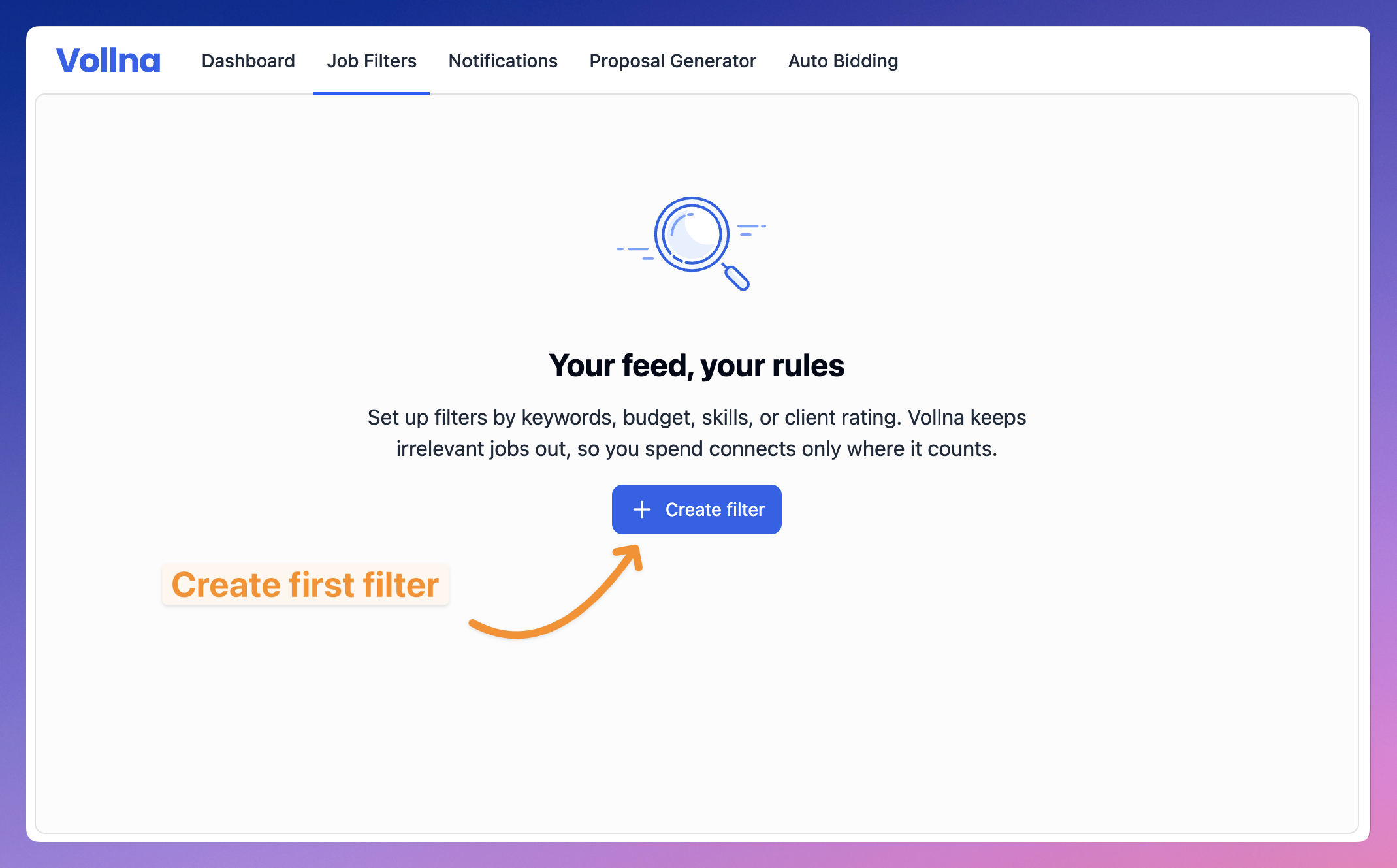
Enter search keywords
Search keywords are necessary for the Filter to seek relevant postings. When multiple keywords are entered, for examplelogo, design, website, the search engine finds projects containing any of these words in the title, description, or skills.
To customize the search scope, use the checkboxes under ‘Advanced Keywords Options’ to enable/disable searching within title, description, or skills fields.
The more skills you enter, the narrower your pool of jobs will be. If you want to get as many jobs as possible, try creating multiple job searches for different skills.
Use exclude keywords
If search keywords alone don’t provide enough filtering and you see irrelevant projects, use the “Exclude keywords” field. This helps eliminate projects that don’t match your skills and makes your filter more specific. For example, if you’re a logo designer but don’t work with 3D, you might:- Add keywords:
logo,branding,design - Add exclude keywords:
3d,animation,video
Learn Search Query Syntax
Learn more about Search Query Syntax and how to use it to create more specific filters.
Specify budget preferences
Enter your preferred minimum hourly rate and/or fixed budget. If you enter hourly rate, but keep fixed budget empty, the Filter will search for jobs with hourly rate only and vice versa. Use maximum hourly rate / fixed budget with caution. It will filter out jobs that have hourly rate / fixed budget higher than the specified value.Filter sites & categories
By default, the Filter will search across all sites and categories. You can customize this by selecting specific sites and categories.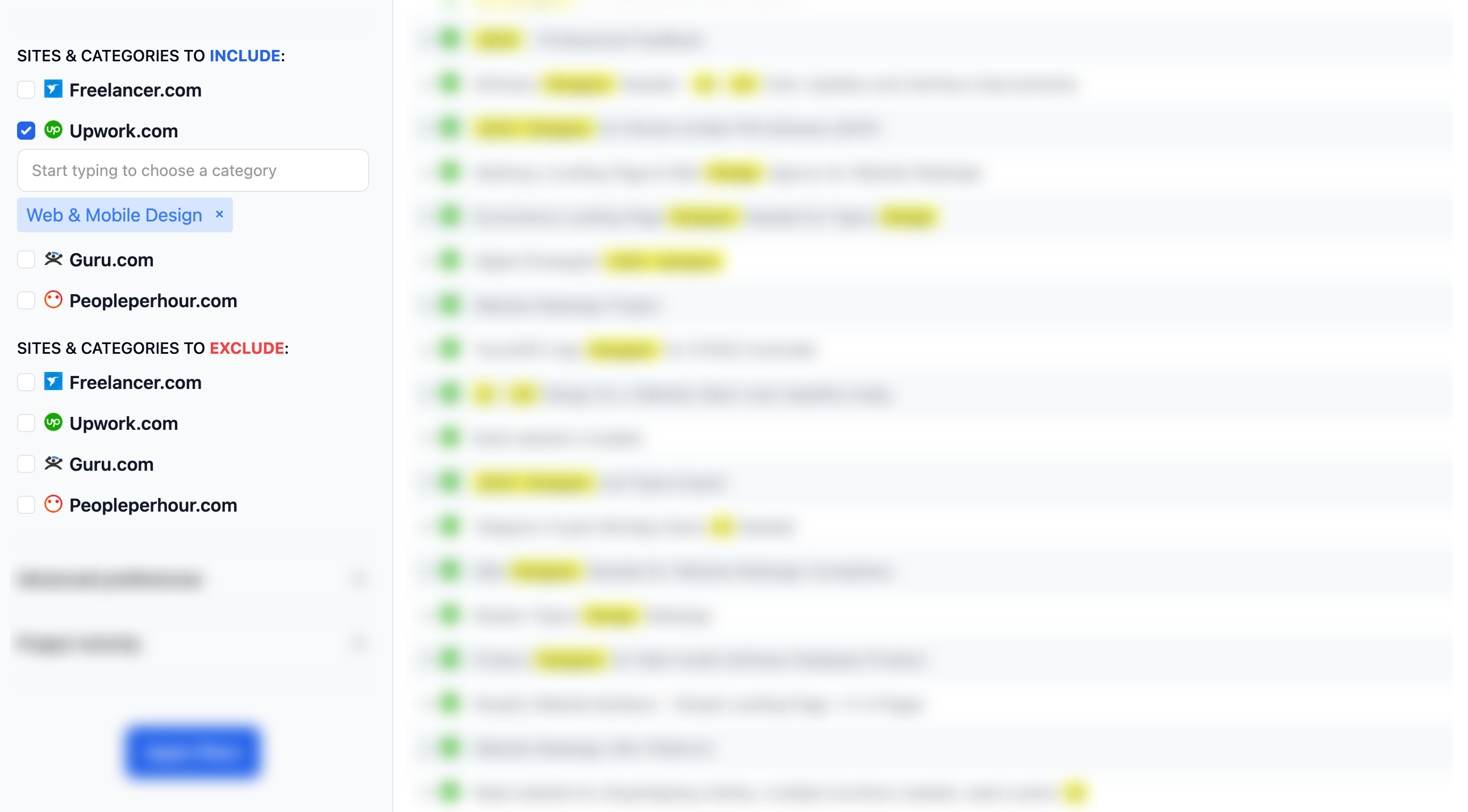
Step 3: Review your filter
After you’ve set up your filter, you can review it and make any necessary adjustments.