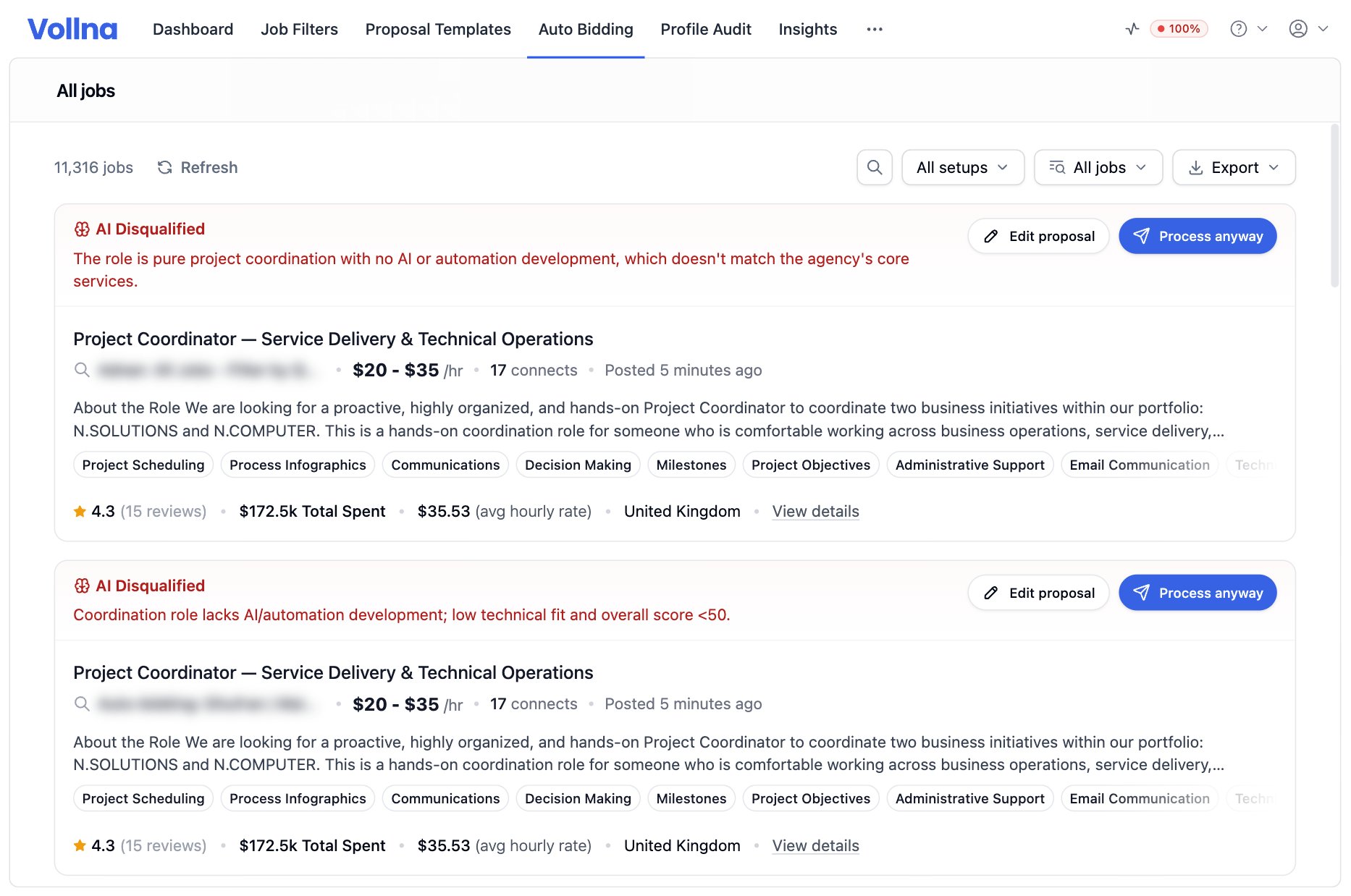
Open a setup to see its own jobs, or click All jobs in the dashboard header to see every setup at once.
All jobs page with the status filter and three job cards
Inside a setup, the All jobs list shows what the filter matches, whether or not auto-bidding acted on it yet. Scheduled, Applied and Skipped show what auto-bidding did.

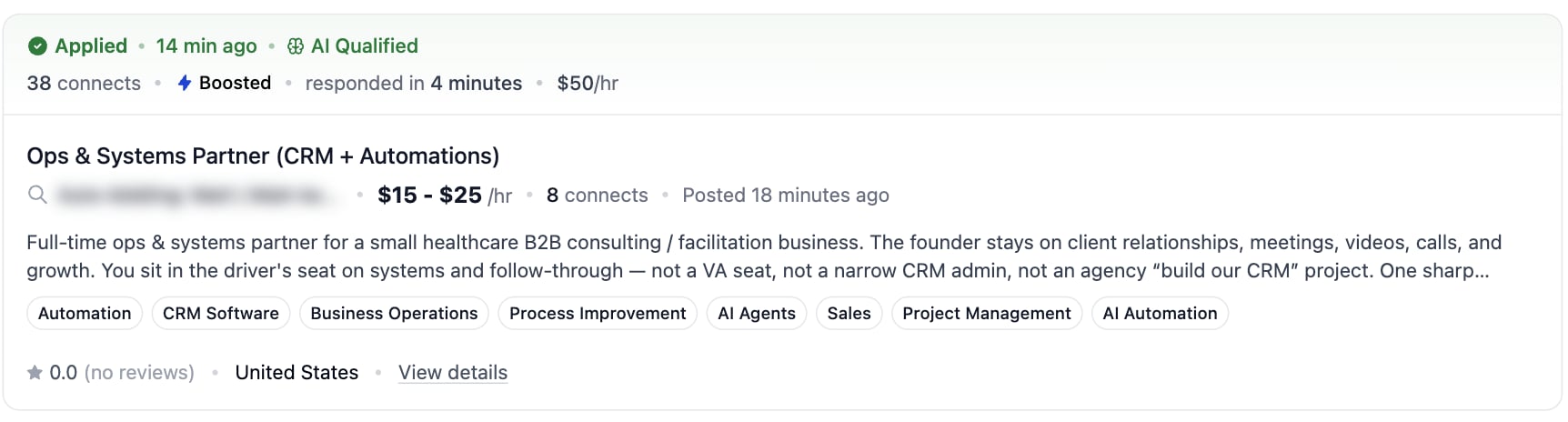
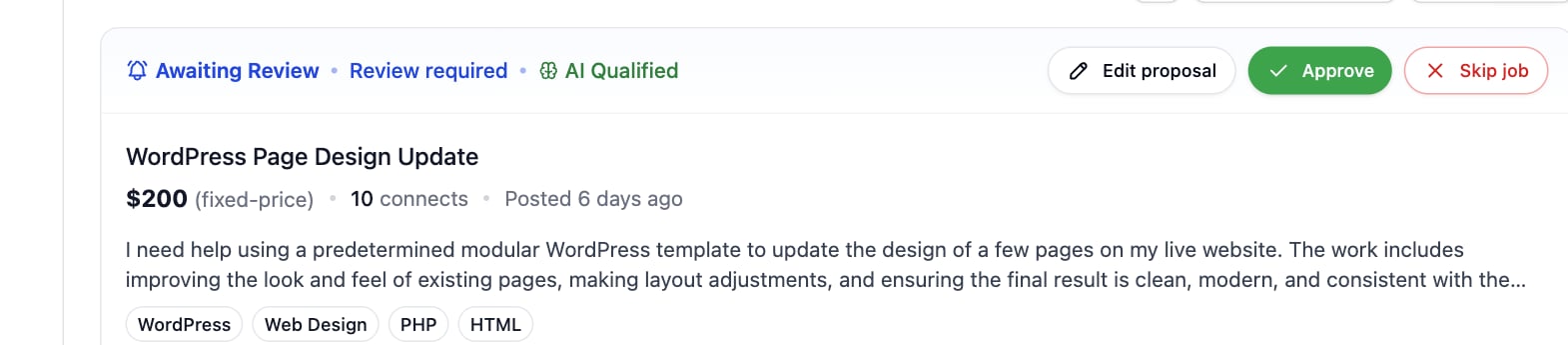
Statuses on a card

Applied job card with connects, boost and response time
Awaiting review card with the auto-approve countdown and the Approve button

Actions

Edit proposal opens the letter, the screening answers and the bid. Save & Apply stores them and queues the job. Skip works only while a job is still waiting. Once it is submitted, withdraw the proposal on Upwork.

Why a job was skipped
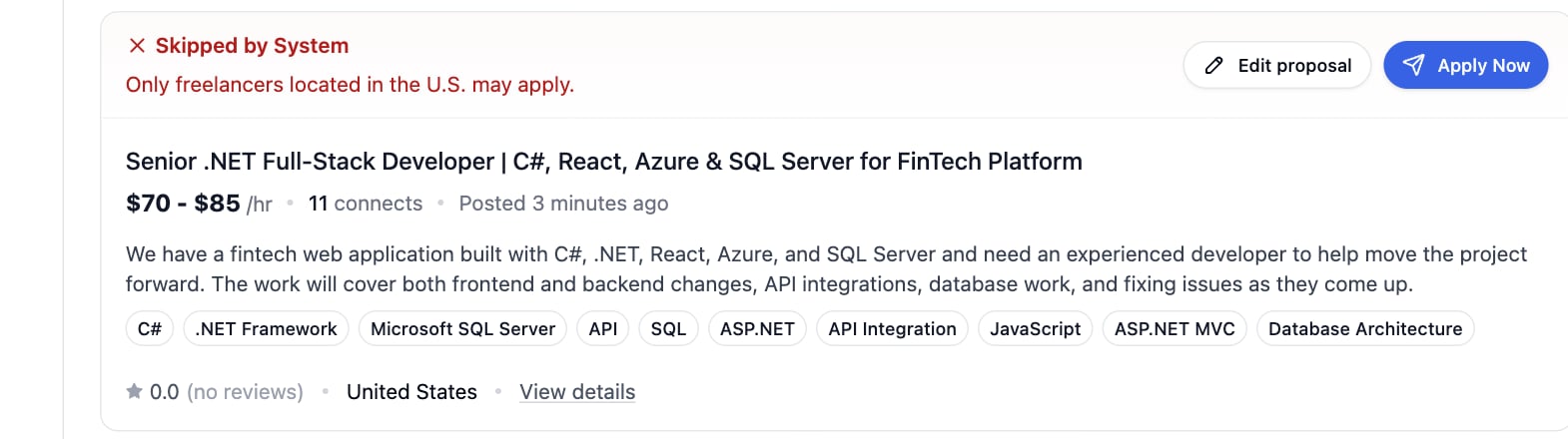
Skipped job card with the reason and the Apply Now button

Job details

Click a job title to open the details drawer with the cover letter, the screening answers, the attachments and the client information. A submitted proposal also shows how far it got: Sent, Viewed, Replied or Hired.
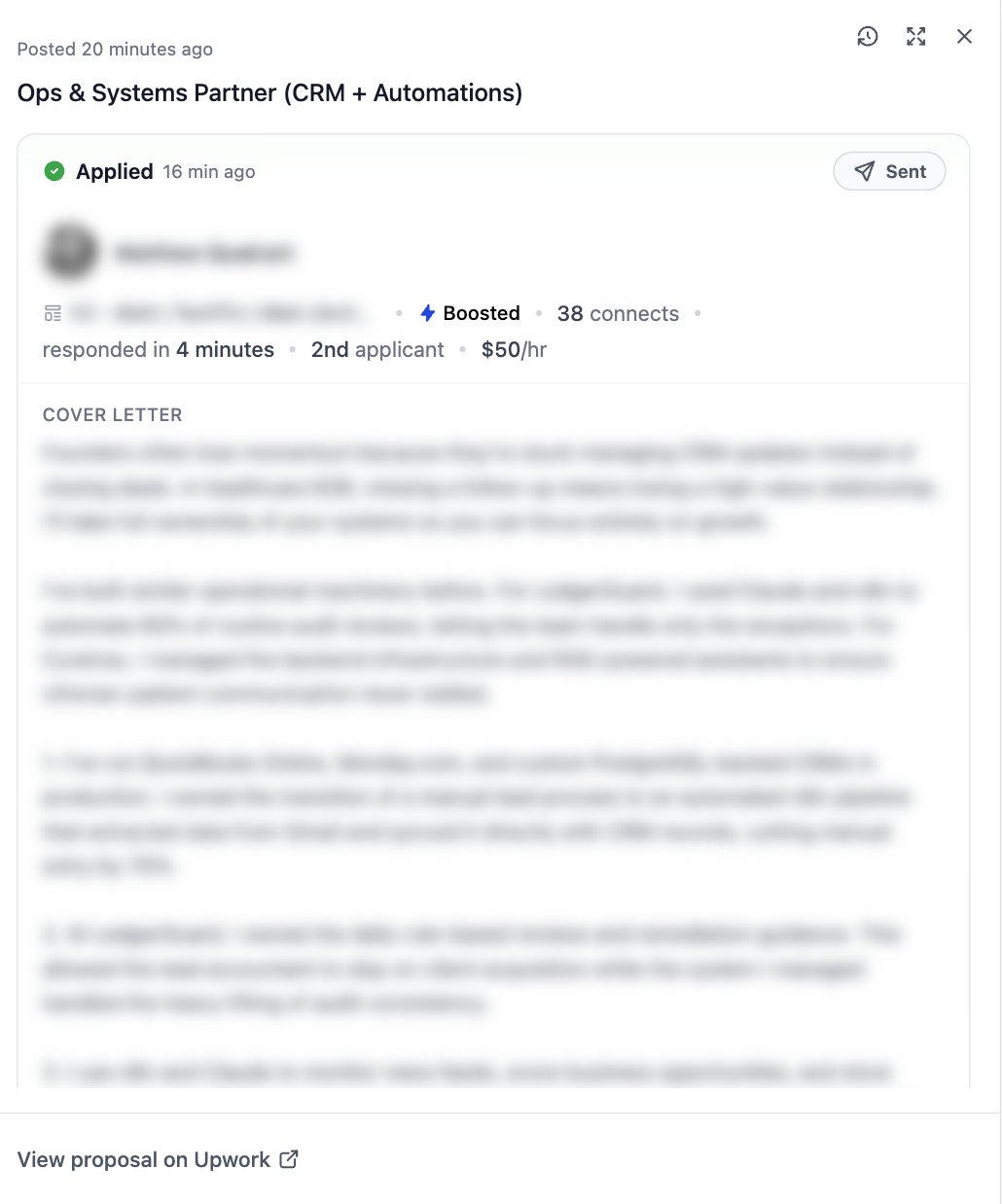
Job details drawer with the cover letter and client information