Stay up to date with the latest features, improvements, and announcements from Vollna. We're constantly working to make your Upwork bidding, proposals, and profile visibility better.
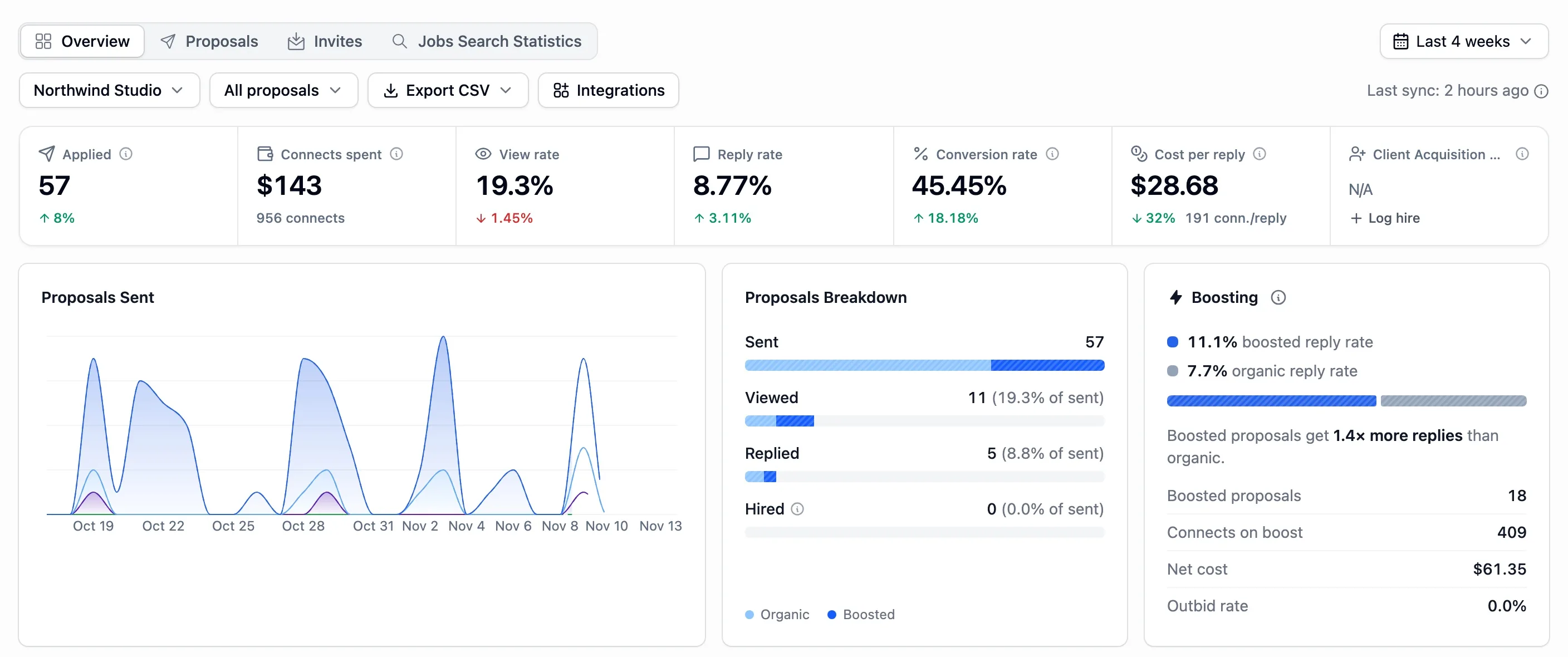
See whether proposals you send within 5 minutes of a job being posted, or among its first 3 applicants, get more replies. A third card shows your reply rate by weekday and hour and names your best hour.
The cards sit on the Overview dashboard and follow its account and filter picker. Previously they showed auto-bids only, now they include the proposals you send yourself.
You can now see Market Insights numbers for only the clients you target, by country or region and by how much they've spent, and narrow them by how long the job runs.
You can now add a Market Insights keyword suggestion to your search with the + next to it.
When a cover letter mentions one of your Upwork portfolio items, the client can now open it in one click.
We've added Gemini 4 Argon, GPT-6.1 and DeepSeek V4.1 to the AI Qualifier and to cover letters.
Quoted phrases pasted into Market Insights from Google Docs or Word now work the same as typed ones.
A slash in a keyword, like Next.js/React, no longer stops your job feed from loading.
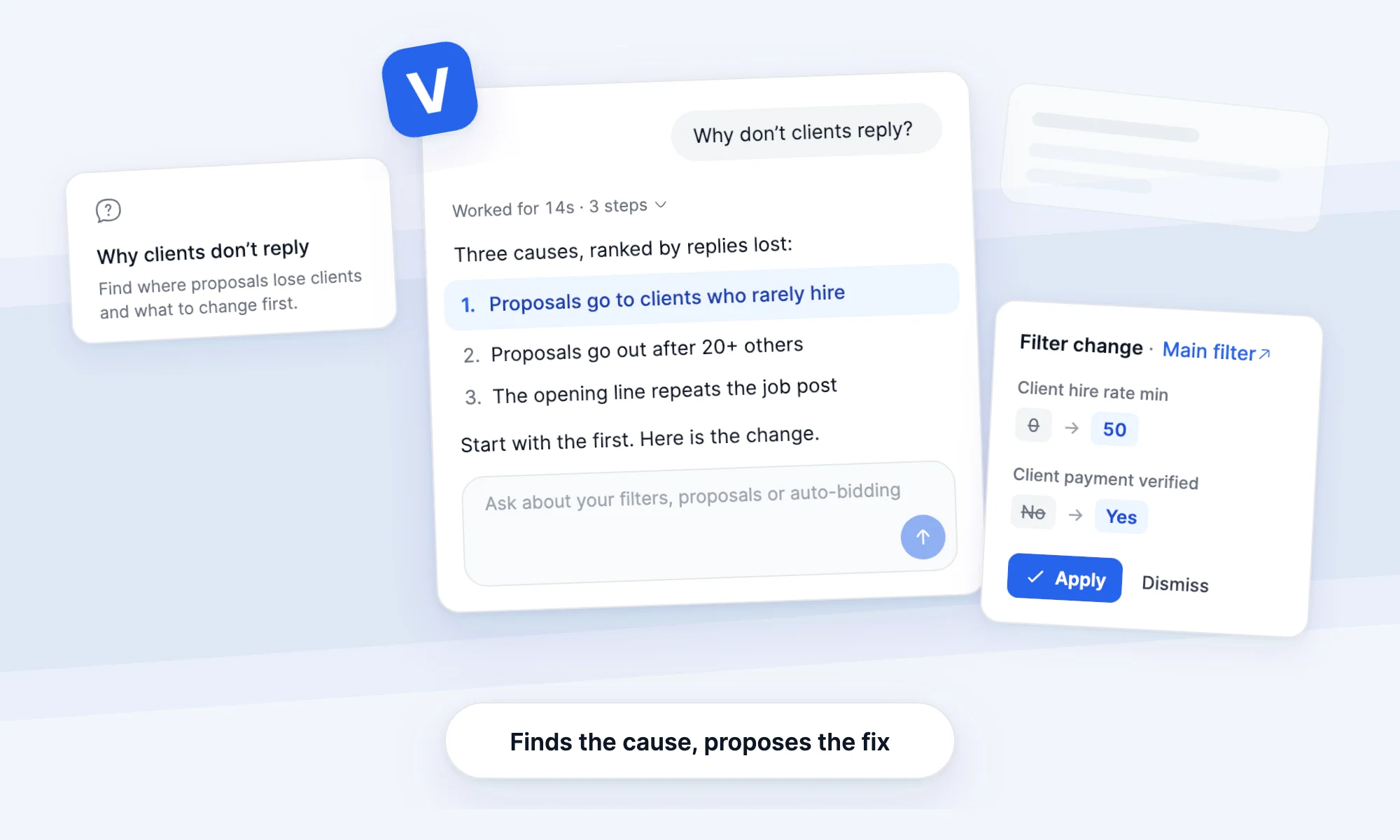
You can now ask the AI Agent why clients don't reply, which filters miss good jobs or where your connects go, and it answers from your proposals and Upwork market data.
Open Agent in the top menu and pick a starting point, such as Why clients don't reply, Filter check-up, Improve a template, Auto-bidding health or Weekly summary, or ask in your own words.
It can change a filter, its AI Qualifier rules or a proposal template, and start or pause an auto-bidding setup. Each change shows as a card and waits for you to click Apply.
Before it suggests new qualifier rules or template instructions, it tries them on real jobs, so you see what they do first.
Your chats stay in the sidebar, grouped by day, and you can rename or archive them.
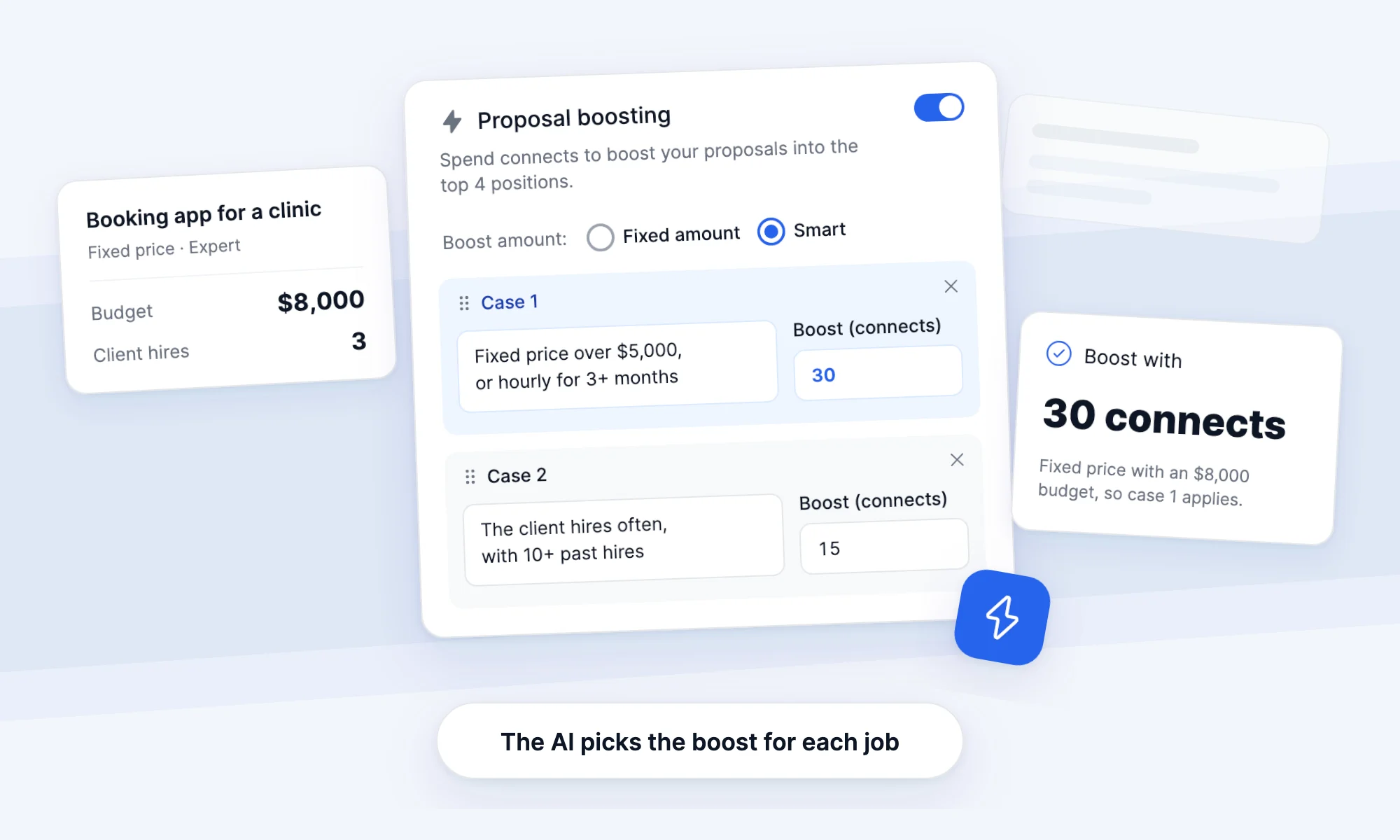
You can now describe the kinds of jobs worth a boost, such as larger projects or clients who hire often, and auto-bidding boosts only the jobs that match one.
Choose Smart boost under Proposal boosting in your auto-bidding setup, and add a case for each kind of job.
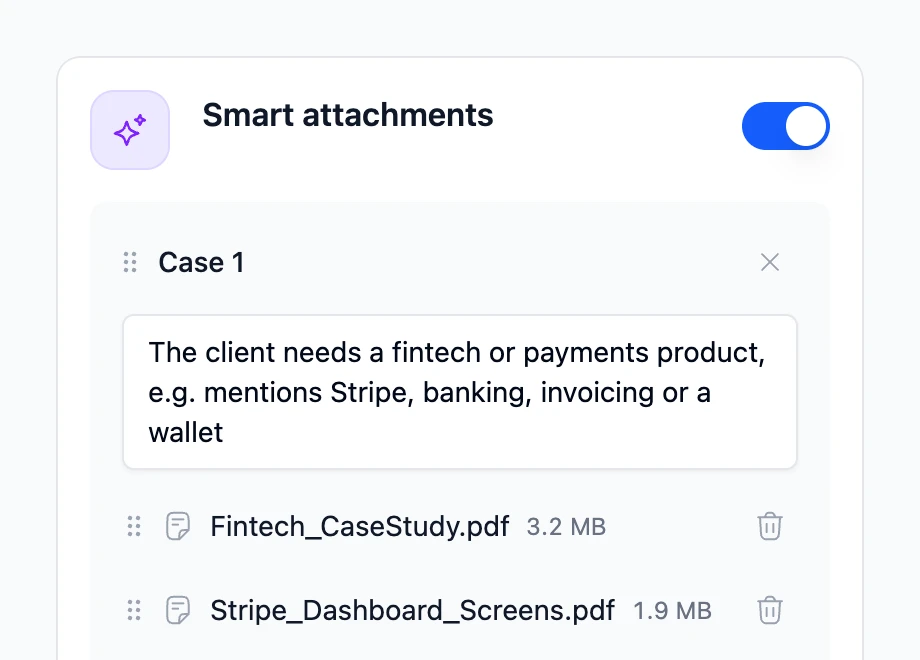
You can now describe when each work sample fits, and the AI attaches the right files to each proposal and says why.
Previously, every proposal carried the same files. Now, in a template's Attachments step, you add a case: describe the job, such as a client who needs a payments app, and add its files. Files under Sent with every proposal still go out each time.
You can now see every version, preview and sent proposal of a template in one place, with what changed and a word-by-word comparison of any two letters.
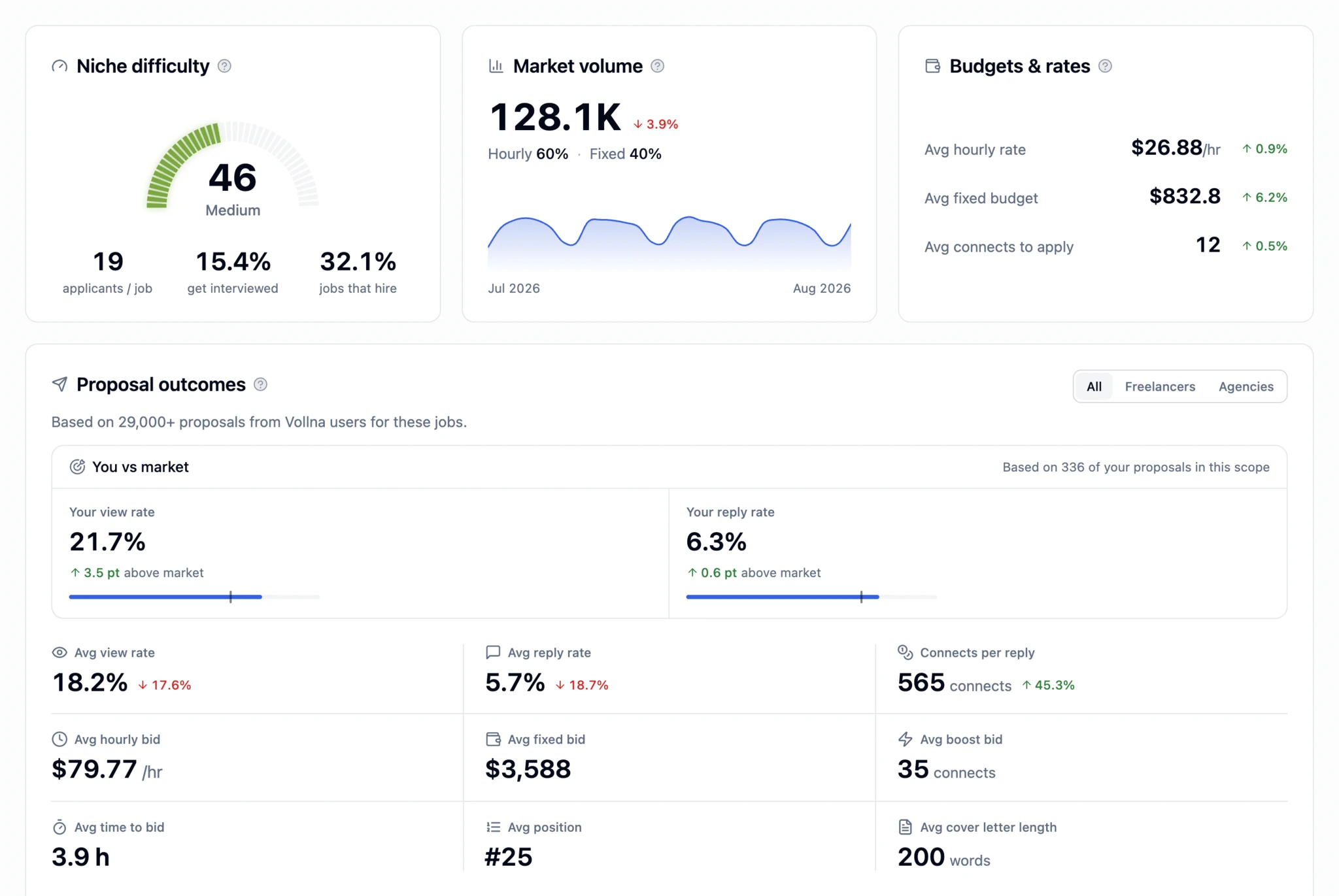
Market Insights now scores each niche from 0 to 100 by how crowded it is and how often its jobs end in a hire, and lists the keywords your filter misses.
You can now keep jobs with attachments out of your feed, alerts and auto-bidding.
You can now choose whether keywords search the job title, the description or the skills.
We've added Claude Sonnet 5, Claude Opus 4.8, Gemini 3.5 Flash, Gemini 3.6 Flash, GPT-5.6, Grok 4.5, Kimi K3 and DeepSeek V4 to the AI Qualifier and to cover letters.
Your alerts no longer resend jobs you've already received.
Filter stats now show only the jobs that filter matches.
You can now see how crowded a niche is on Upwork, how often proposals there get replies and what clients pay, before you spend connects on it.
Open Insights and set the keywords for your niche. You'll see applicants per job, average rates and budgets, and which skills are gaining or losing momentum. Your own view rate and reply rate on the same jobs sit next to the market's.
Click Compare in a cover letter preview to write the same letter with a second AI model, then click Use this model on the better one to make it the template's model.
Each proposal and invitation can now become a Pipedrive deal that moves through your stages as the client views, replies and hires. You can also log them to an Airtable base or a Google Sheet.
When you preview a proposal template, you now see the letter the way it looks in Upwork's list of applicants, so you can check the first lines the client reads.
You can now tell the AI what to change in a proposal, like "make it shorter", and it rewrites only that part.
You'll find it in the dashboard's proposal editor, in auto-bidding and in the Chrome extension on Upwork's apply page. Type what to change under the letter, or pick one of the suggestions.
We now buy connects for you before you run out, so a low balance doesn't stop your bids overnight.
Turn on Auto top-up Connects in Auto Bidding settings, then set the balance to top up at, how many connects to buy each time and your monthly limit. Each top-up is charged to your Upwork billing method, and the top-up history lists every one.
When a client replies to a proposal, the teammates you pick now join the Upwork chat right away, so they can answer without access to the bidding profile.
Turn on Invite teammates to chat in Auto Bidding settings.
You can now split your auto-bids between two or more templates and see which one gets more replies.
In an auto-bidding setup, click A/B test another template and set each template's share. Choose reply rate or view rate as the winning metric, and the test can pick the winner for you when it ends. Every test's results are on the A/B tests page.
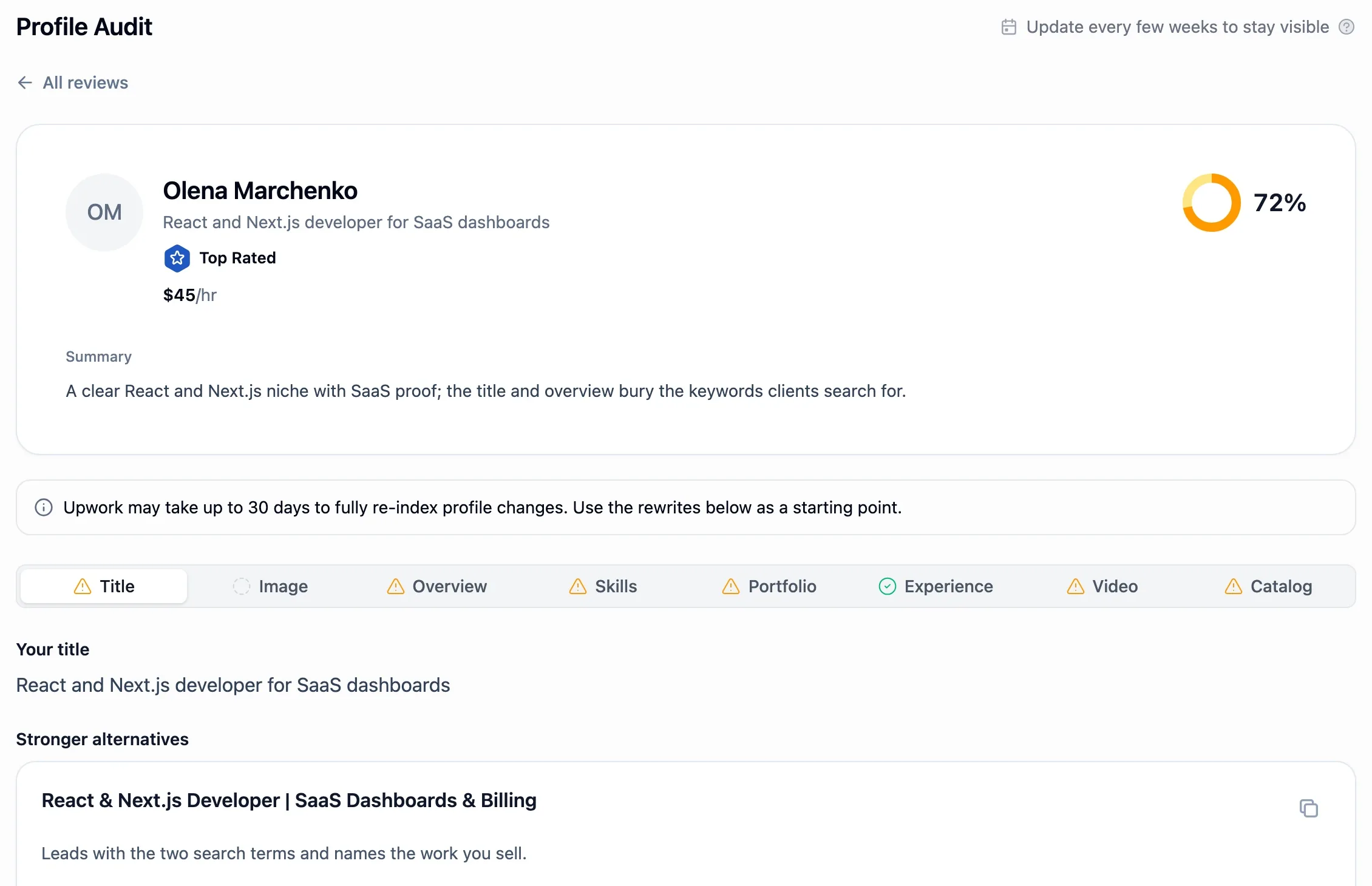
You can now score your Upwork profile, or any agency member's, and get a stronger rewrite for each weak part, such as your title.
Open Profile Audit and run an audit to see the score and a short summary. Every audit stays on the page, so you can see your progress as you improve your profile.
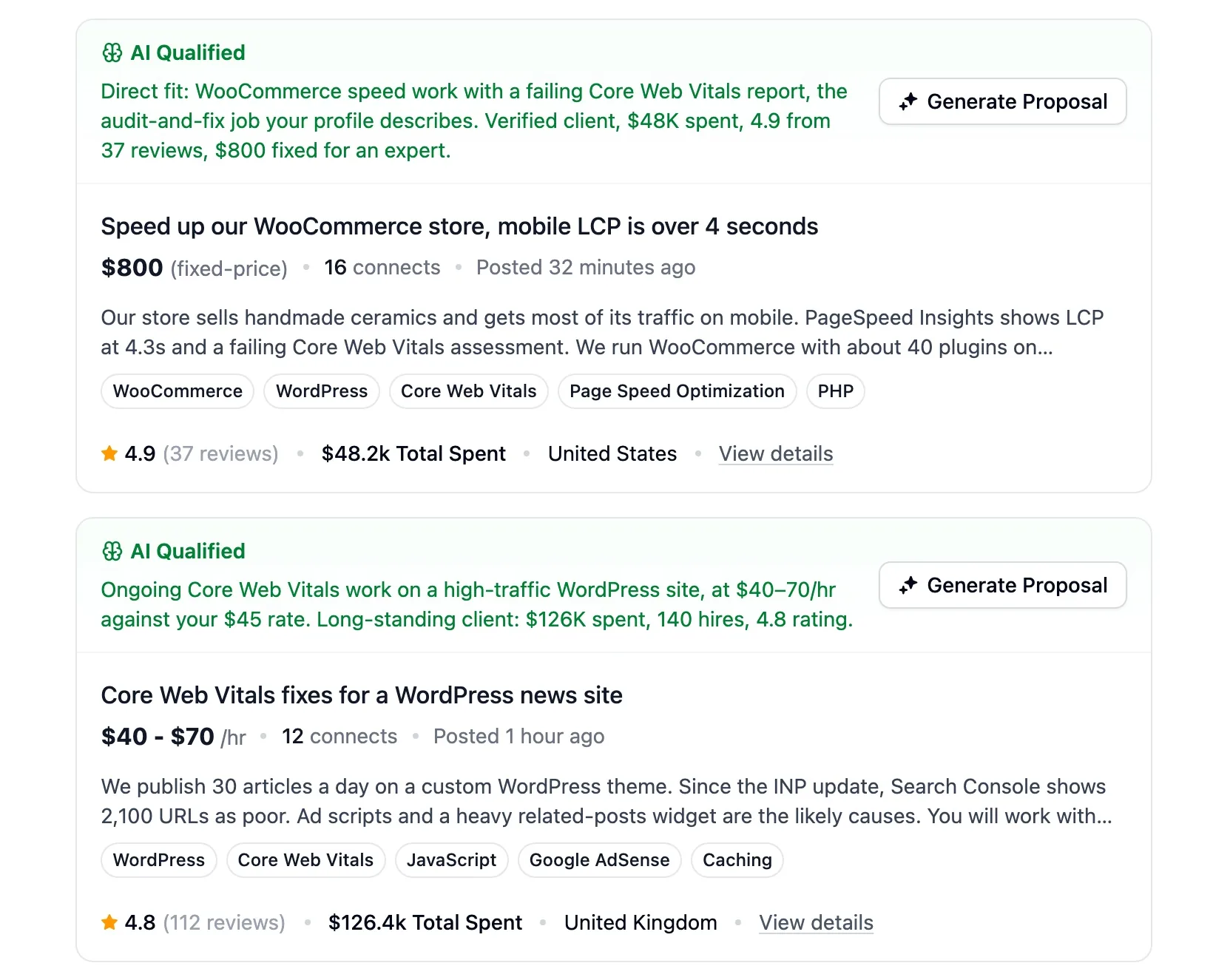
Each job your filter matches is now checked against rules you write in plain words, so you spend connects only on jobs that fit.
Add the rules on the filter's AI Qualifier page. Every job then shows Qualified or Disqualified with the reason, and your alerts can carry only the qualified ones.
You can now approve or skip each job in Telegram or Slack before auto-bidding sends its proposal, so a poor fit doesn't cost you connects.
Turn on Notifications in your auto-bidding setup and connect Telegram or Slack. Each job arrives as a message, where you can also edit the answers to the client's questions or change the bid.
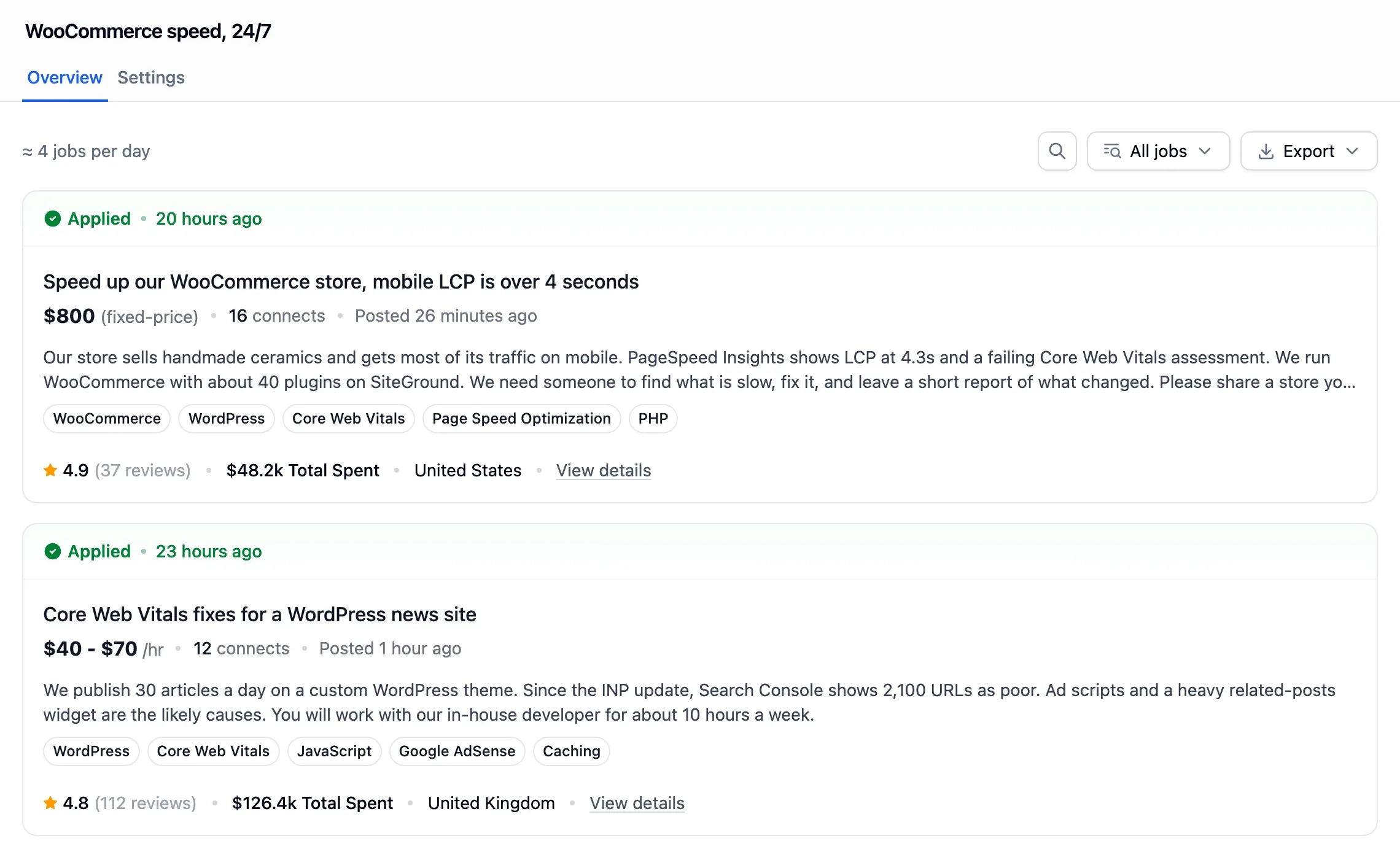
We now send a proposal to each job your filters match, on your schedule, so you bid while the job is still fresh.
Create a setup in Auto Bidding: choose the filters and the proposal template, then set the hours to bid in under Bidding schedule. Turn on Proposal boosting to boost proposals with extra connects.
You can now put your own and your teammates' Upwork profiles side by side, even without an agency, and compare how each one performs.
Click New group in Upwork accounts and add the profiles. Then pick the group in the Dashboard's profile menu to see their proposals, replies and hires together.