> ## Documentation Index
> Fetch the complete documentation index at: https://www.vollna.com/docs/llms.txt
> Use this file to discover all available pages before exploring further.
# Setting Up Notifications in Telegram
> A step-by-step guide to setting up and managing job search notifications from Upwork in Telegram.
Job search notifications help you stay informed without constant monitoring, ensuring you don't miss any opportunities. To set them up in Telegram, follow steps below.
## Step 1: Access Notification Settings
1. Go to **Dashboard** in the main navigation menu > **Notifications**.
2. Locate Telegram from the list of available integrations.
 ## Step 2: Start Telegram Bot
1. Click on **Setup** next to Telegram.
2. You will be redirected to Telegram to authorize the connection.
3. Follow the on-screen instructions to link your Telegram account with Vollna to create a new chat with the bot:
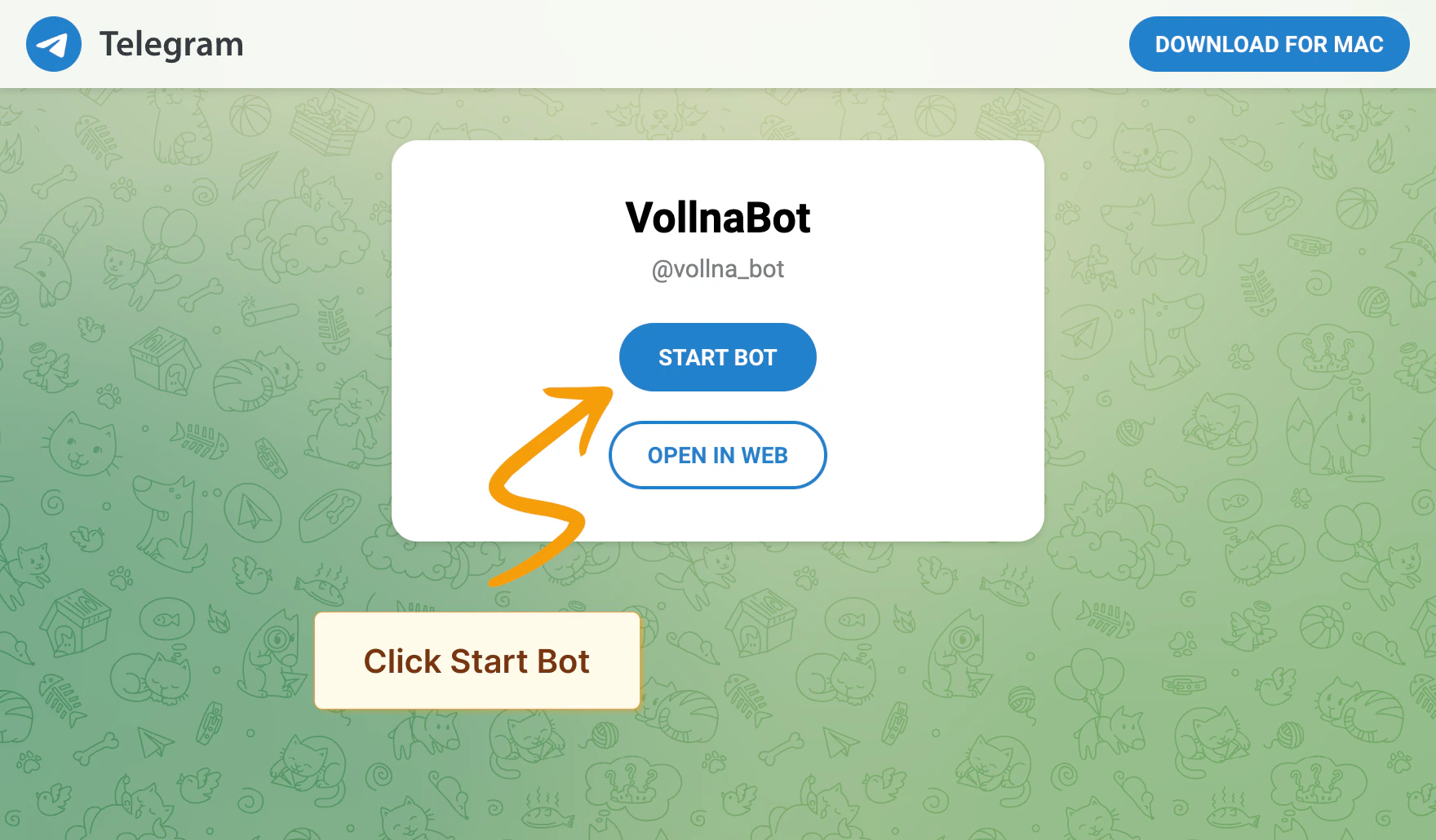
a. Click on **Start Bot** button.
b. Telegram app will be opened. Click on **Start** button.
c. Bot will send you verification link. Click on it to verify notification setup.
## Step 2: Start Telegram Bot
1. Click on **Setup** next to Telegram.
2. You will be redirected to Telegram to authorize the connection.
3. Follow the on-screen instructions to link your Telegram account with Vollna to create a new chat with the bot:
a. Click on **Start Bot** button.
b. Telegram app will be opened. Click on **Start** button.
c. Bot will send you verification link. Click on it to verify notification setup.
 #### Managing Channels
You can add @vollna\_bot to any Telegram group or channel:
1. Add @vollna\_bot as a member to your group or channel
2. Send the command `/start @vollna_bot` in the chat
3. Click the verification link sent by the bot to complete the setup
For channels, make sure to give the bot admin rights so it can post messages.
## Step 3: Assign Filters
After Telegram bot is connected, you'll be redirected to the notifications setup page where you can assign one or multiple filters to your Telegram group or channel.
Read more about how to [manage filters](/docs/filters/overview)
## Notification Types
You can choose between two types of notifications in Telegram:
### Short Notification
Sends a brief summary of new job postings, including the title, budget, site, and time of publication. This option groups multiple projects in a single notification.
#### Managing Channels
You can add @vollna\_bot to any Telegram group or channel:
1. Add @vollna\_bot as a member to your group or channel
2. Send the command `/start @vollna_bot` in the chat
3. Click the verification link sent by the bot to complete the setup
For channels, make sure to give the bot admin rights so it can post messages.
## Step 3: Assign Filters
After Telegram bot is connected, you'll be redirected to the notifications setup page where you can assign one or multiple filters to your Telegram group or channel.
Read more about how to [manage filters](/docs/filters/overview)
## Notification Types
You can choose between two types of notifications in Telegram:
### Short Notification
Sends a brief summary of new job postings, including the title, budget, site, and time of publication. This option groups multiple projects in a single notification.
 ### Detailed Notification
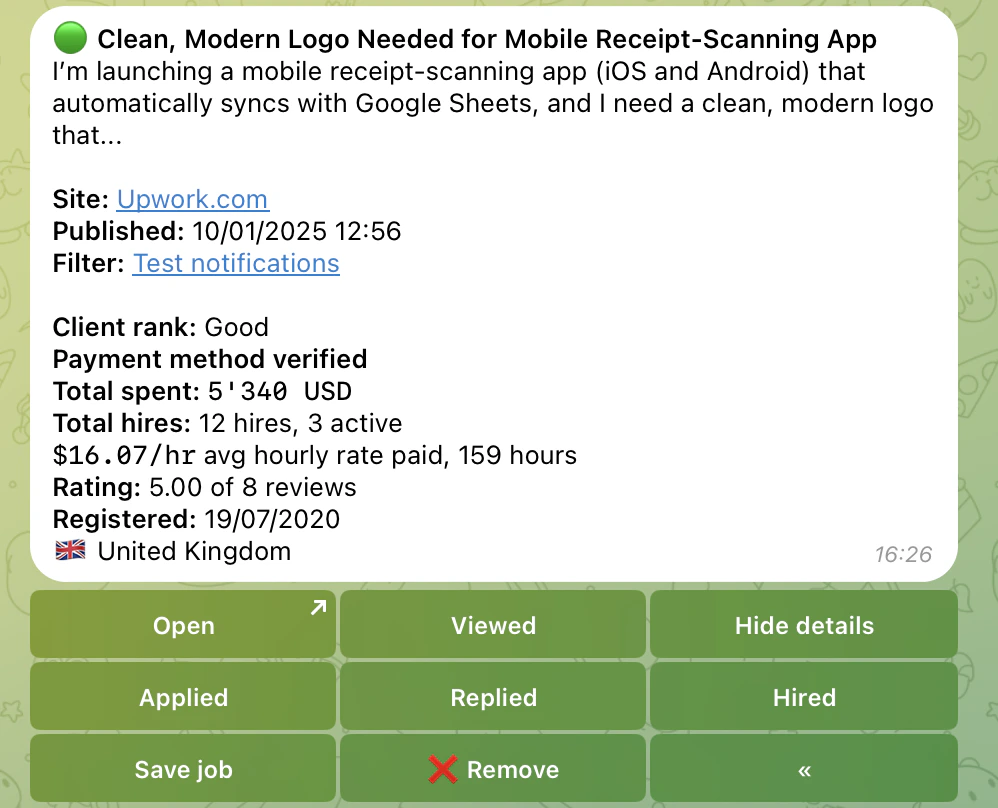
Provides a detailed summary of the job posting, including additional information such as short description, client rating, payment method verification and total spent. This option sends a separate notification for each new job posting.
### Detailed Notification
Provides a detailed summary of the job posting, including additional information such as short description, client rating, payment method verification and total spent. This option sends a separate notification for each new job posting.
 Following these steps, you can efficiently set up and manage Job Search notifications in Telegram, ensuring you stay updated with the latest opportunities.
For more information, check out our guides on setting up notifications in [Discord](/docs/notifications/discord) and [Slack](/docs/notifications/slack).
Following these steps, you can efficiently set up and manage Job Search notifications in Telegram, ensuring you stay updated with the latest opportunities.
For more information, check out our guides on setting up notifications in [Discord](/docs/notifications/discord) and [Slack](/docs/notifications/slack).