> ## Documentation Index
> Fetch the complete documentation index at: https://www.vollna.com/docs/llms.txt
> Use this file to discover all available pages before exploring further.
# Auto-Bidding Slack Channel Access
> Fix the "app is not in this channel" warning for Auto-Bidding Slack approval messages.
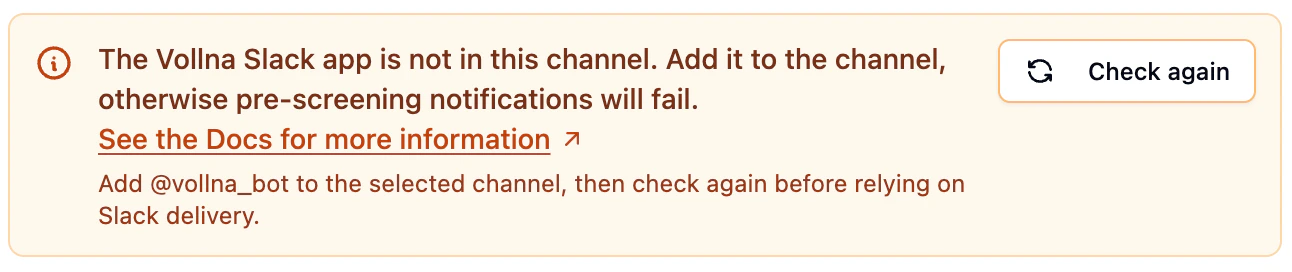
Use this page if Auto-Bidding shows `app is not in this channel` or Slack delivery fails with `not_in_channel`.
This guide applies only to Auto-Bidding Slack approval messages. For regular Slack notifications, use the [Slack notifications guide](/docs/notifications/slack).
## Requirements
You need:
* a connected Slack workspace in Auto-Bidding settings
* permission to invite apps to the target Slack channel
* an existing member to invite `@vollna_bot` if the channel is private
## Setup
### 1. Connect Slack
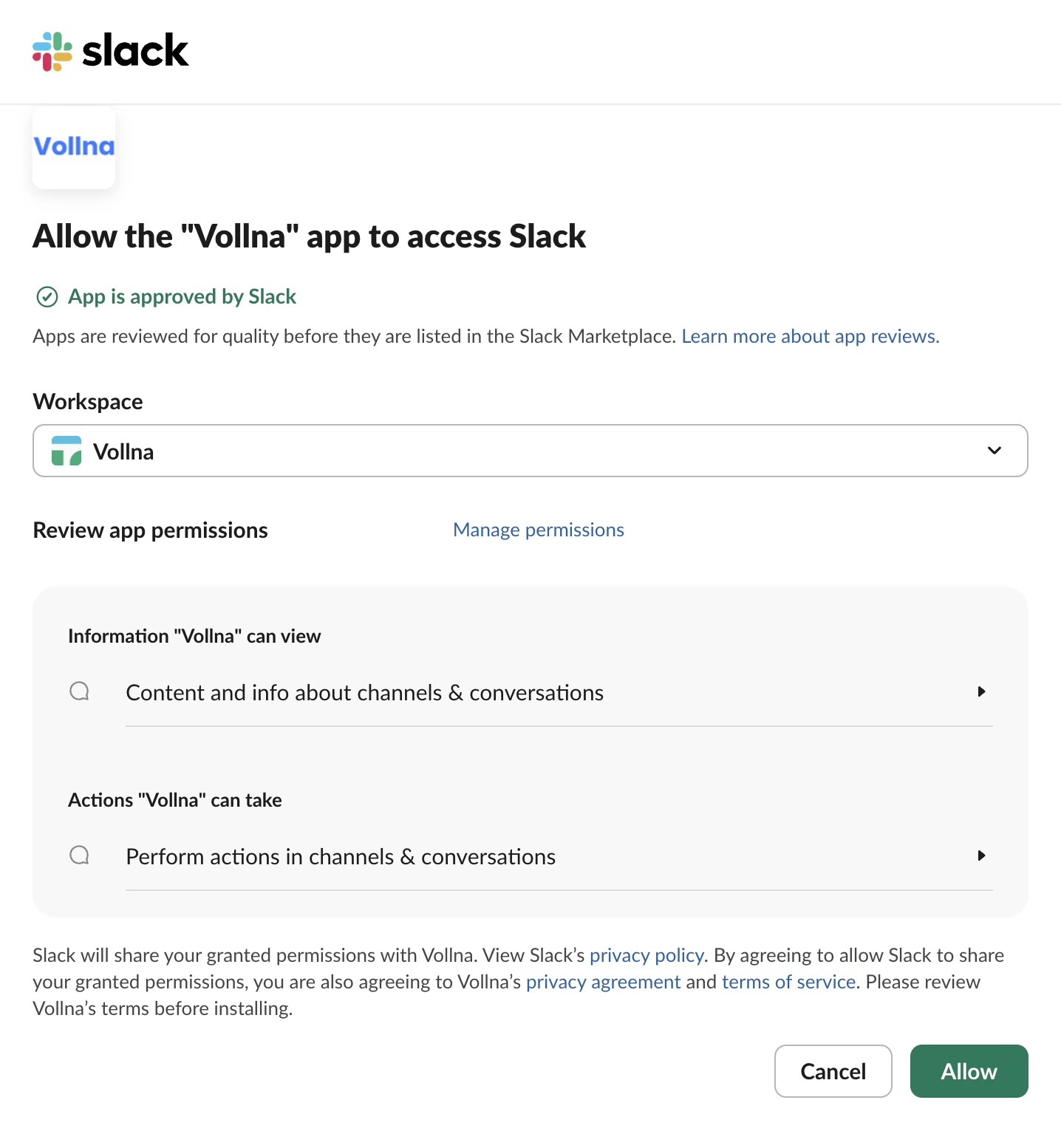
Connect your Slack workspace in Auto-Bidding settings.
When Slack opens the authorization screen, review the workspace and click **Allow**.
 ### 2. Select the channel
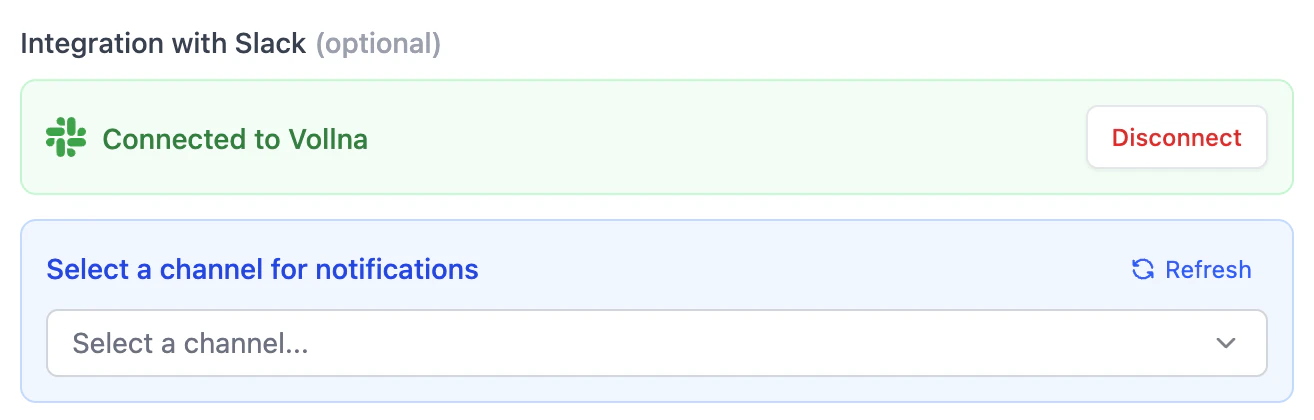
Choose the channel where approval messages should be sent.
After Slack is connected, return to Auto-Bidding settings and choose the target channel in the Slack section.
### 2. Select the channel
Choose the channel where approval messages should be sent.
After Slack is connected, return to Auto-Bidding settings and choose the target channel in the Slack section.
 If the app is not yet in the selected channel, Auto-Bidding shows a warning like this:
 ### 3. Add the Vollna app to the channel
In Slack, open the same channel and run:
```text theme={null}
/invite @vollna_bot
```
For private channels, the invite must be sent by someone who is already a member of that private channel.
### 4. Click Check again
Return to Auto-Bidding settings and click **Check again**.
If the app is in the channel, the warning disappears and delivery is ready.
## Public vs Private Channels
* Public channels can appear in Auto-Bidding even if `@vollna_bot` has not been added yet.
* Private channels require the app to be invited before Auto-Bidding can post.
Connecting a Slack workspace and adding the app to a channel are separate steps. Selecting a channel in Vollna does not automatically add `@vollna_bot` to that channel.
## Why This Happens
Slack can let Vollna list a channel before the app is actually a member of it. When Auto-Bidding tries to post into a channel that does not include `@vollna_bot`, Slack returns `not_in_channel`.
## Troubleshooting
### The channel is selected, but Vollna still shows the warning
Check all of the following:
1. `@vollna_bot` appears in the channel member list
2. you invited the app to the same channel selected in Auto-Bidding
3. you clicked **Check again** after inviting the app
### I invited the app, but the warning is still shown
Try this:
1. wait a few seconds for Slack to update channel membership
2. click **Check again** again
3. reconnect Slack if the wrong workspace was connected
### I want to use a private channel
Private channels only work after `@vollna_bot` is invited by someone who is already a member of that private channel.
If the private channel is not working, confirm:
1. you are selecting the correct Slack workspace
2. `@vollna_bot` has been invited to the private channel
3. the invite was done by an existing member of that private channel
### 3. Add the Vollna app to the channel
In Slack, open the same channel and run:
```text theme={null}
/invite @vollna_bot
```
For private channels, the invite must be sent by someone who is already a member of that private channel.
### 4. Click Check again
Return to Auto-Bidding settings and click **Check again**.
If the app is in the channel, the warning disappears and delivery is ready.
## Public vs Private Channels
* Public channels can appear in Auto-Bidding even if `@vollna_bot` has not been added yet.
* Private channels require the app to be invited before Auto-Bidding can post.
Connecting a Slack workspace and adding the app to a channel are separate steps. Selecting a channel in Vollna does not automatically add `@vollna_bot` to that channel.
## Why This Happens
Slack can let Vollna list a channel before the app is actually a member of it. When Auto-Bidding tries to post into a channel that does not include `@vollna_bot`, Slack returns `not_in_channel`.
## Troubleshooting
### The channel is selected, but Vollna still shows the warning
Check all of the following:
1. `@vollna_bot` appears in the channel member list
2. you invited the app to the same channel selected in Auto-Bidding
3. you clicked **Check again** after inviting the app
### I invited the app, but the warning is still shown
Try this:
1. wait a few seconds for Slack to update channel membership
2. click **Check again** again
3. reconnect Slack if the wrong workspace was connected
### I want to use a private channel
Private channels only work after `@vollna_bot` is invited by someone who is already a member of that private channel.
If the private channel is not working, confirm:
1. you are selecting the correct Slack workspace
2. `@vollna_bot` has been invited to the private channel
3. the invite was done by an existing member of that private channel