> ## Documentation Index
> Fetch the complete documentation index at: https://www.vollna.com/docs/llms.txt
> Use this file to discover all available pages before exploring further.
# Team Webhooks (Proposals & Invitations)
> Receive real-time webhook events when proposals or invitations change in your workspace
Team Webhooks let your system receive **real-time HTTP requests** when key events happen in Vollna (proposal created, proposal status/view state changed, invitation created, invitation status changed).
Team Webhooks are available with [Agency plan](https://www.vollna.com/pricing) or as paid add-on.
## Where to configure
* Go to **Dashboard → Settings → Developers → Webhooks** (or use the **Webhooks & API** shortcut in the top-right user menu).
* Click **Add Endpoint**.
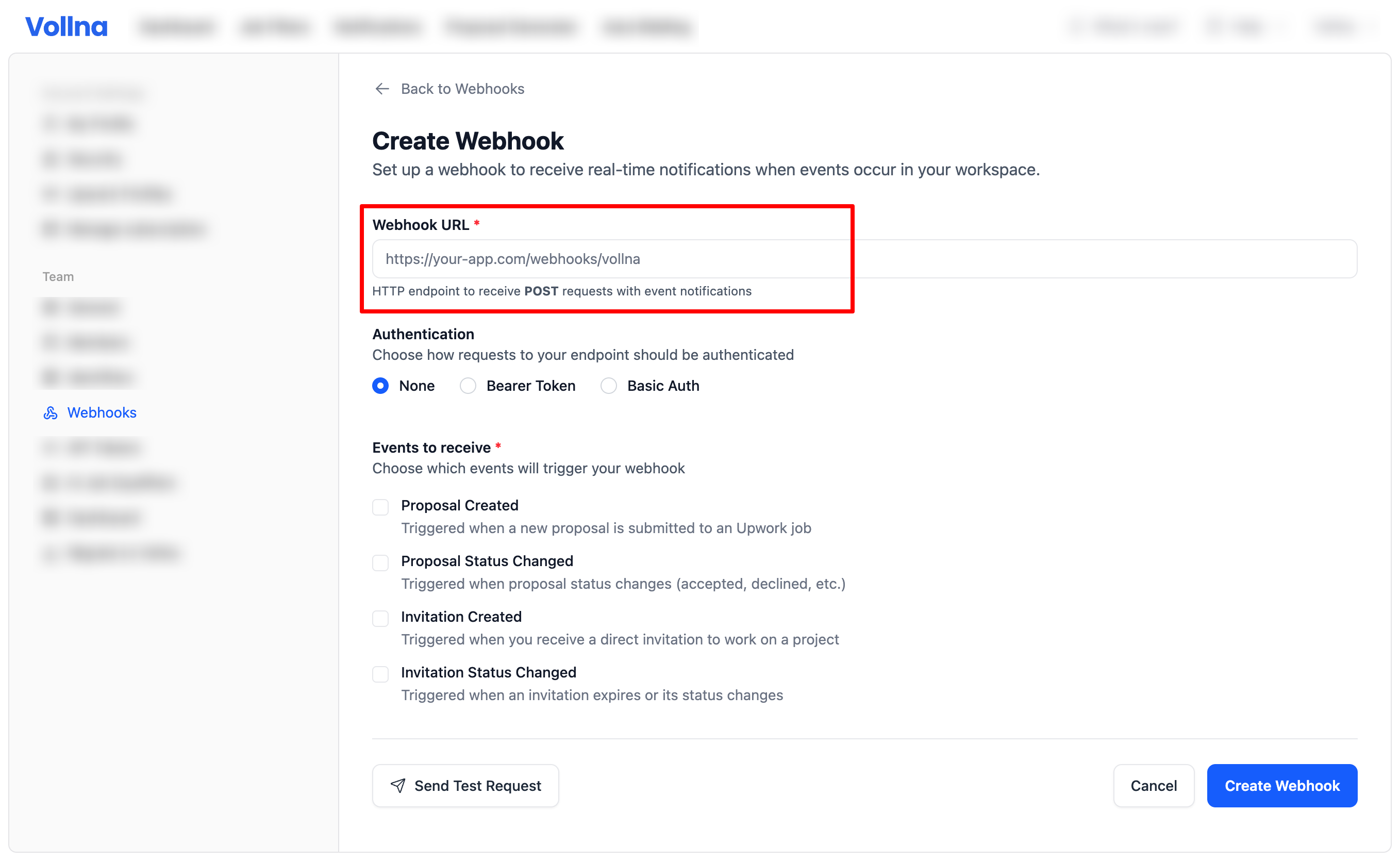
## Step 1: Set your endpoint URL
* Enter the **Webhook URL** (a public HTTPS endpoint that accepts `POST`).
 ## Step 2: Pick events to receive
You can subscribe to one or more events:
* **Proposal Created** (`upwork_proposal.created`): triggered when a new proposal is saved in your workspace.
* **Proposal Status Changed** (`upwork_proposal.status_changed`): triggered when the proposal’s state changes. This includes **view state** changes (e.g. when `isViewed` toggles), and also changes to `isInterviewed`, `isHired`, `isWithdrawn`, `isArchived`.
* **Invitation Created** (`upwork_invitation.created`): triggered when a new invitation is saved in your workspace.
* **Invitation Status Changed** (`upwork_invitation.status_changed`): triggered when an invitation’s `status` or `reason` changes.
## Step 3 (optional): Configure authentication
If your endpoint requires auth, Vollna can send:
* **Bearer Token**: `Authorization: Bearer `
* **Basic Auth**: `Authorization: Basic base64(username:password)`
Authentication credentials are stored securely and are not shared with any third parties.
## Technical Specifications
Understanding the technical details of how Vollna sends webhook requests:
* **HTTP Method**: POST
* **Content-Type**: application/json
* **Timeout**: 10 seconds
* **User-Agent**: `Vollna-Webhooks/1.0`
* **`X-Vollna-Event-Id`** header: every request carries the same `evt_*` identifier as the `id` field in the JSON body — useful for logging, deduping, and tracing without parsing the body.
### Testing Your Webhook
You can test your webhook configuration by clicking **Send Test Request** in the webhook form. This sends a sample request to verify your endpoint is reachable and accepts your auth settings.
## Payload format
Every request is JSON with the same top-level structure:
* `id`: unique delivery identifier prefixed with `evt_` (e.g. `evt_a4f1c0d3e8b9...`). One id per delivery — log it so you can trace any request back to the matching row under **Logs**.
* `event`: the event name (e.g. `upwork_proposal.status_changed`)
* `timestamp`: ISO-8601 timestamp
* `data`: the proposal or invitation payload (serialized)
The `id` is a public, opaque token. It does not encode any internal database id and is safe to log, store, and forward. The same value is sent in the `X-Vollna-Event-Id` HTTP header.
### Example: proposal status/view state changed
```json theme={null}
{
"id": "evt_a4f1c0d3e8b9d4f6a1c2",
"event": "upwork_proposal.status_changed",
"timestamp": "2026-05-16T12:34:56+00:00",
"data": {
"id": 12345,
"application_uid": "1234567890123456",
"isViewed": true,
"isInterviewed": false,
"isHired": false,
"isWithdrawn": false,
"isArchived": false
}
}
```
## Debugging delivery
Open **Dashboard → Settings → Developers → Webhooks → Logs** to inspect every delivery attempt. Each row shows the timestamp (in your timezone, with full UTC + milliseconds on hover), the `evt_*` Message ID, event type, and status. Click a row to view the request payload, response body, and any error message.
The **Activity** tab shows hourly delivery counts (Successful / Failed) over the last 6 hours so you can spot incidents at a glance.
## Best practices
* **Return 2xx quickly** (ideally \< 5s). Do heavy work asynchronously.
* **Log the `id`** on receipt — pair it with your own internal handler trace so you can correlate problems with the **Logs** tab in Vollna.
* **Make handlers idempotent** based on the business id inside `data` (e.g. `application_uid`) — your handler may run more than once for the same underlying record if you re-process or replay traffic.
* **Validate JSON** and tolerate missing/optional fields in `data`.
## Troubleshooting
### Common Issues
#### Webhook Not Receiving Requests
1. **Check webhook URL**: Ensure it's publicly accessible and returns a 2xx status code
2. **Verify authentication**: If using auth, check credentials are correct
3. **Test connectivity**: Use the "Send test notification" button in the setup form
4. **Check firewall**: Ensure your server allows incoming requests from Vollna
#### Missing Fields in Webhook Data
* The `data` object is a serialized entity and fields may be optional depending on the record.
* Always check if a field exists before accessing it.
### Testing Your Integration
1. **Use test notification**: Click "Send Test Request" in the webhook setup
2. **Check logs**: Monitor your server logs for incoming requests
3. **Validate JSON**: Ensure your endpoint can parse the JSON payload
4. **Test authentication**: Verify auth headers are received correctly
5. **Response handling**: Ensure you return appropriate HTTP status codes
## Step 2: Pick events to receive
You can subscribe to one or more events:
* **Proposal Created** (`upwork_proposal.created`): triggered when a new proposal is saved in your workspace.
* **Proposal Status Changed** (`upwork_proposal.status_changed`): triggered when the proposal’s state changes. This includes **view state** changes (e.g. when `isViewed` toggles), and also changes to `isInterviewed`, `isHired`, `isWithdrawn`, `isArchived`.
* **Invitation Created** (`upwork_invitation.created`): triggered when a new invitation is saved in your workspace.
* **Invitation Status Changed** (`upwork_invitation.status_changed`): triggered when an invitation’s `status` or `reason` changes.
## Step 3 (optional): Configure authentication
If your endpoint requires auth, Vollna can send:
* **Bearer Token**: `Authorization: Bearer `
* **Basic Auth**: `Authorization: Basic base64(username:password)`
Authentication credentials are stored securely and are not shared with any third parties.
## Technical Specifications
Understanding the technical details of how Vollna sends webhook requests:
* **HTTP Method**: POST
* **Content-Type**: application/json
* **Timeout**: 10 seconds
* **User-Agent**: `Vollna-Webhooks/1.0`
* **`X-Vollna-Event-Id`** header: every request carries the same `evt_*` identifier as the `id` field in the JSON body — useful for logging, deduping, and tracing without parsing the body.
### Testing Your Webhook
You can test your webhook configuration by clicking **Send Test Request** in the webhook form. This sends a sample request to verify your endpoint is reachable and accepts your auth settings.
## Payload format
Every request is JSON with the same top-level structure:
* `id`: unique delivery identifier prefixed with `evt_` (e.g. `evt_a4f1c0d3e8b9...`). One id per delivery — log it so you can trace any request back to the matching row under **Logs**.
* `event`: the event name (e.g. `upwork_proposal.status_changed`)
* `timestamp`: ISO-8601 timestamp
* `data`: the proposal or invitation payload (serialized)
The `id` is a public, opaque token. It does not encode any internal database id and is safe to log, store, and forward. The same value is sent in the `X-Vollna-Event-Id` HTTP header.
### Example: proposal status/view state changed
```json theme={null}
{
"id": "evt_a4f1c0d3e8b9d4f6a1c2",
"event": "upwork_proposal.status_changed",
"timestamp": "2026-05-16T12:34:56+00:00",
"data": {
"id": 12345,
"application_uid": "1234567890123456",
"isViewed": true,
"isInterviewed": false,
"isHired": false,
"isWithdrawn": false,
"isArchived": false
}
}
```
## Debugging delivery
Open **Dashboard → Settings → Developers → Webhooks → Logs** to inspect every delivery attempt. Each row shows the timestamp (in your timezone, with full UTC + milliseconds on hover), the `evt_*` Message ID, event type, and status. Click a row to view the request payload, response body, and any error message.
The **Activity** tab shows hourly delivery counts (Successful / Failed) over the last 6 hours so you can spot incidents at a glance.
## Best practices
* **Return 2xx quickly** (ideally \< 5s). Do heavy work asynchronously.
* **Log the `id`** on receipt — pair it with your own internal handler trace so you can correlate problems with the **Logs** tab in Vollna.
* **Make handlers idempotent** based on the business id inside `data` (e.g. `application_uid`) — your handler may run more than once for the same underlying record if you re-process or replay traffic.
* **Validate JSON** and tolerate missing/optional fields in `data`.
## Troubleshooting
### Common Issues
#### Webhook Not Receiving Requests
1. **Check webhook URL**: Ensure it's publicly accessible and returns a 2xx status code
2. **Verify authentication**: If using auth, check credentials are correct
3. **Test connectivity**: Use the "Send test notification" button in the setup form
4. **Check firewall**: Ensure your server allows incoming requests from Vollna
#### Missing Fields in Webhook Data
* The `data` object is a serialized entity and fields may be optional depending on the record.
* Always check if a field exists before accessing it.
### Testing Your Integration
1. **Use test notification**: Click "Send Test Request" in the webhook setup
2. **Check logs**: Monitor your server logs for incoming requests
3. **Validate JSON**: Ensure your endpoint can parse the JSON payload
4. **Test authentication**: Verify auth headers are received correctly
5. **Response handling**: Ensure you return appropriate HTTP status codes